Category Archives : Uncategorized

Large LDF files in windows SBS 2008

http://neat-trick.blogspot.com/2011/04/large-ldf-files-in-windows-sbs-2008.html

By default the MSSQL database is set to full backup (which doesn’t help if your backup software doesn’t "play nice" with sql). Problem comes in when after some months, Exchange stop working altogether because the drive has been files by SharePoint’s database (namely the replay logs, or .LDF files)

To rectify this, you need to:

  • Connect to the sharepoint database in SBS 2008 with the following link: \\.\pipe\MSSQL$MICROSOFT##SSEE\sql\query
  • Regain control of the database. As you may or may not know, SharePoint is first installed using the local administrator, which kind of goes in limbo once you enable active directory. You end up with a pretty useless login. Re-enable  the ‘sa’ login by running the following query on your database: ALTER AUTHORIZATION ON DATABASE::[Database_Name] to sa;
  • Right click on the database, properties> options. Set backup mode to simple.
  • Right click on the database, task, shrink, shrink files. Select log file, leave the rest as default and press ok. Tada! 20G recovered in 5 minutes (plus one hour to figure the !@#$%^& mess SBS 2008 created in the first place)

Top Support Solutions for Windows Small Business Server 2011 Standard


http://blogs.technet.com/b/sbs/archive/2014/02/18/top-support-solutions-for-windows-small-business-server-2011-standard.aspx

This is a collection of the top Microsoft Support solutions to the most common issues experienced using Windows Small Business Server 2011 Standard (updated quarterly). Note that some content that applies to earlier versions of Windows Server is listed, because it can be helpful with Windows Small Business Server 2011 Standard issues also.

Active Directory and Directory Services

Client Computers issues    

Internet Information Services (IIS)

Licensing

Mail flow issues

Network and Web Connectivity

Reliability and Performance

Small Business Server (SBS) Components

Microsoft SQL Server

Installation and Migration

Certificate Requirements for Windows 2008 R2 and Windows 2012 Remote Desktop Services

http://blogs.technet.com/b/askperf/archive/2014/01/24/certificate-requirements-for-windows-2008-r2-and-windows-2012-remote-desktop-services.aspx


Good morning AskPerf!  Kiran here with a question for you:  Why do we need certificates?  Well, certificates are used to sign the communication between two machines.  When a client connects to a server, the identity of the server that is receiving the connection and in turn, information from the client, is validated using certificates.

This is done to prevent possible man-in-the-middle attacks.  When a communication channel is setup between the client and the server, the authority that issues/generates the certificate is vouching for the server to be authentic.

So, as long as the client trusts the server it is communicating with, the data being sent to and from the server is considered secure.  This brings me to the next question:

What type of certificate is required for RDS?

The following blog contains information regarding the type of certificates and how you can create them using the Internal CA of the domain.

http://blogs.msdn.com/b/rds/archive/2010/04/09/configuring-remote-desktop-certificates.aspx

Basic requirements for Remote Desktop certificates:

  1. The certificate is installed into computer’s “Personal” certificate store.
  2. The certificate has a corresponding private key.
  3. The "Enhanced Key Usage" extension has a value of either "Server Authentication" or "Remote Desktop Authentication" (1.3.6.1.4.1.311.54.1.2). Certificates with no "Enhanced Key Usage" extension can be used as well.

As the function it performs suggests, we need a ‘Server Authentication’ certificate.  This certificate can be generated using the ‘Workstation Authentication’ template (if required).

Here is the exact process: 

  1. Open CERTSRV.MSC and configure certificates.
  2. Open Certification Authority.
  3. In the details pane, expand the instructor computer name.
  4. Right-click Certificate Templates and select Manage. Right-click Workstation Authentication and click Duplicate Template.
  5. On the General tab, change the Template display name to Client-Server Authentication and check Publish certificate in Active Directory.
  6. On the Extensions tab, click Application Policies then Edit. Click Add then select Server Authentication. Click OK until you return to the Properties of New Template dialog.
  7. Click the Security tab. For Domain Computers, click the checkbox to ‘Allow Autoenroll’. Click OK. Close the Certificate Templates Console.
  8. In the certsrv snap-in, right-click Certificate Templates and select New then Certificate Template to Issue.
  9. Select Client-Server Authentication and then click OK.

This will be visible when viewing the certificate in the ‘Certificates’ MMC snap-in, as below:

clip_image002

When you open the certificate, the ‘General’ tab will also contain the purpose of this certificate to be ‘Server Authentication’ as seen below:

clip_image003

Another way to validate this, would be to go to the ‘Details’ section of the certificate and look at the ‘Enhanced Key Usage’ property:

clip_image004

The easiest way to get a certificate, if you control the client machines that will be connecting, is to use Active Directory Certificate Services.  You can request and deploy your own certificates and they will be trusted by every machine in the domain. 

If you’re going to allow users to connect externally and they will not be part of your domain, you would need to deploy certificates from a public CA.  Examples including, but not limited to: GoDaddy, Verisign, Entrust, Thawte, DigiCert

Now that you know what type of certificate you need, let’s talk about the contents of the certificate.

In Windows 2008/2008 R2, you connect to the farm name, which as per DNS round robin, gets first directed to the redirector, next to the connection broker and finally to the server that will host your session.

In Windows 2012, you connect to the Connection Broker and it routes you to the collection by using the collection name. 

The certificates you deploy need to have a subject name or subject alternate name that matches the name of the server that the user is connecting to.  So for example, for Publishing, the certificate needs to contain the names of all of the RDSH servers in the collection.  The certificate for RDWeb needs to contain the FQDN of the URL, based on the name the users connect to.  If you have users connecting externally, this needs to be an external name (needs to match what they connect to).  If you have users connecting internally to RDweb, the name needs to match the internal name.  For Single Sign On, again the subject name needs to match the servers in the collection.

For our example, let’s consider my RDS deployment to contain the following machines:

RDSH1.RENDER.COM                 Session Host with Remote Apps configured

RDSH2.RENDER.COM                 Session Host with Remote Apps configured

RDVH1.RENDER.COM                Virtualization host with VDI VMs configured

RDVH2.RENDER.COM                Virtualization host with VDI VMs configured

RDCB.RENDER.COM                   Connection Broker

RDWEB.RENDER.COM               RDWeb and Gateway server

When my client connects internally, he will enter the FQDN of the server that hosts the web page, i.e,: RDWEB.RENDER.COM.

The name of the certificate needs to be this name, of the URL that the user will initiate the connection to.  But we need to remember that the connection does not just end here.  The connection then flows from the web server to one of the session hosts or virtualization hosts and also the connection broker.

The certificate can be common on all of these servers.  This is why we recommend that the Subject Alternate Name of the certificate contain the names of all the other servers that are part of the deployment.

In short, the certificate for my environment would be as follows:

Type: Server Authentication

Name: RDWEB.RENDER.COM

SAN: RDSH1.RENDER.COM; RDSH2.RENDER.COM; RDVH1.RENDER.COM; RDVH2.RENDER.COM; RDCB.RENDER.COM

This is all you need as long as you have 5 or less servers in the deployment. But we have a problem when we have more servers in the deployment. This is because, by design, the SAN (Subject Alternate Name) on a certificate, can only contain 5 server names. If you have more of them, you will have to get a wildcard certificate issued to cover all the servers in the deployment. Here my certificate changes as follows:

Type: Server Authentication

Name: RDWEB.RENDER.COM

SAN: *.RENDER.COM

We still do encounter some challenges when it comes to the following scenario. Note, that this is true only when you have external users that access the deployment.

External name: RDWEB.RENDER.com

Internal Name: RDWEB.RENDER.local

Here, if you get a certificate with RDWEB.RENDER.COM in the name, the certificate errors still do appear.  This is because the certificate is supposed to validate a server with the FQDN: ‘RDWEB.RENDER.COM’.  However, your server is ‘RDWEB.RENDER.LOCAL’ and the ‘.com’ to ‘.local’ magic only happens at your public firewall/router using port forwarding (most common scenario).

In such scenarios, we previously recommended that the name on the certificate contains the ‘.com’ name and the SAN contains the ‘.local’ name.

Recently, all public certificate providers are stopping issuing certificates with ‘.LOCAL’ in them. Starting with Windows 8 and Windows Server 2012, we no longer need the external and internal names to be contained in the certificate.

In scenarios where you have external clients connecting in and you have a private internal domain suffix (DOMAIN.LOCAL), you can get a certificate from a Public CA with the external (RDWEB.DOMAIN.COM) name and bind it to the RD Web Access and RD Gateway roles, because these are the only roles that are exposed to the internet.  For RD Connection Broker – Publishing and RD Connection Broker – Enable Single Sign On, you can make use of an internal certificate with the ‘DOMAIN.LOCAL’ name on it.  This however, as mentioned earlier, will only work with clients connecting through RDC 8.0 or above.

The RD Gateway and Remote Desktop Client version 8.0 (and above) provides the external users with a secure connection to the deployment. Once connected to the deployment, the internal certificate with the ‘.local’ name will take care of Remote App signing (publishing) and Single Sign-On.

Now, lets look at where we configure the certificate we have:

Open the Server Manager on the Connection Broker server and Click on Remote Desktop Services in the left-most pane.

Once here, you will see your deployment shown as in the illustration below. Click on Tasks and select “Edit Deployment Properties”

clip_image005

This will bring up the property sheet of the deployment. Select the Certificates option in the left pane:

clip_image006

Now, as discussed earlier, you can select the certificate that was created using the ‘Select Existing Certificate’ button on the bottom of the screen.

Just point it to the ‘.pfx’ file and allow it to import the certificate for the role.

You can use a single certificate for all the roles, if your clients are internal to the domain only, by generating a simple wildcard certificate (*.RENDER.LOCAL) and binding it to all the roles.

Note, that even if you have multiple servers that are part of this deployment, the Server Manager will import the certificate to all the servers in the deployment, place them in the trusted root of the machines and bind them to the respective roles.

How to change the location of your iPhone backup and iTunes MobileSync Backup folder

http://www.hanselman.com/blog/HowToChangeTheLocationOfYourIPhoneBackupAndITunesMobileSyncBackupFolder.aspx


My C:\Users\Scott\AppData\Roaming\Apple Computer\MobileSync was almost 25 gigs and on a 256 gig hard drive, that’s 10% and that’s tight. I wanted to move it but there’s no officially support way.

Here’s a way. It’s totally not supported and could totally screw up your computer, so you’ve been warned. Remember that you googled your way to this blog and I’m just a random guy. No warranty, Dear Reader. If you are reasonably savvy and you understand that this Works On My Machine, then we’ll get along fine.

Here’s the idea. You’ll move it to a drive with more space, but you’ll LIE to iTunes using a little-used Windows Utility that will make a LINK between the folder iTunes expects to find and the folder you want your backups in.

  • First, make sure iTunes isn’t running
  • Now, move the C:\Users\(yourname)\AppData\Roaming\Apple Computer\MobileSync\Backup\ folder to your preferred location. My was F:\iTunesMobileSync. This is up to you.
  • Finally, start a command prompt as an administrator. You can do this from the Start Menu, type cmd.exe, then right click and select Run As Administrator. From the command prompt, create an junction point as I do below, just change f:\yournewfolder with your new location.
    • One thing to to make sure of, don’t end up with a folder like f:\yournewbackupfolder\Backup\Backup, so be sure to check how your folders ended up when you moved them.
mklink /J "C:\Users\yourname\AppData\Roaming\Apple Computer\MobileSync\Backup" "f:\yournewfolder\Backup"

You should see something like this in Windows 7. Note the little "shortcut" overlay icon? That’s saying this is a link.

MobileSync as a Junction Point

You can also confirm it with dir from the command line. Note the <junction>:

C:\Users\Scott\AppData\Roaming\Apple Computer\MobileSync>dir

Directory of C:\Users\Scott\AppData\Roaming\Apple Computer\MobileSync

11/25/2011 10:10 PM <DIR> .
11/25/2011 10:10 PM <DIR> ..
11/25/2011 10:10 PM <JUNCTION> Backup [f:\iTunesMobileSync\Backup]
0 File(s) 0 bytes
3 Dir(s) 97,594,851,328 bytes free

If you are still on XP and not Vista or Windows 7, you don’t have mklink, but you can use the junction utility in the same way.

Again, if these instructions don’t make sense do you, I urge you to find a techie and please, be careful. You’ve been warned. That said, I’ve just opened up 25 gigs on my C: drive, so I’m happy.

Exporting and Importing SSL certificate chains in IIS and TMG

http://fixmyitsystem.com/2011/02/exporting-and-importing-ssl-certificate.html

My personal belief nowadays is that any business or corporate application should exclusively be published in HTTPS because really HTTP is just plain text.  Usernames and password, all data etc, all going in plain intercept-able, sniff-able plain text.
This was traditionally offset by the performance penalty associated with the encryption and decryption process.  But that has not been a factor since CPUs hit GHz speeds.  As for the "perceived" size increase for adding SSL encryption it can be called minuscule, and that has not been a factor since the end of the  28,800 modem days.
To publish an Application in TMG with HTTPS you need the certificate to attach to your listener.
Exporting Certificates
Exporting and importing certificates is best done from the MMC console.
Typically a certificate is created on an IIS machine by requesting a certificate, submitting the certificate request and receiving the certificate and compling the certificate request process.  The certificate can then be exported.

  • Open the MMC console
  • Files – Add/Remove Snap In
  • Select Certificates and Click add
  • When Prompted select to manage certificates for "Computer account"
  • Select Local Computer
  • One open expand Certificates – Personal -Certificates

Find the certificate that needs to be exported.
Right Click – All tasks – Export
Follow the wizard and respond as follows when prompted;

  • Yes, export the private key
  • Include all certificates in the certification path if possible
  • Export all extended properties
  • Specify a password
  • Specify a file name

This will now give you a single PFX certificate file that you can import.  It should also contain any other certificates required higher up in the certificate chain.  If not you would have to import those manually.
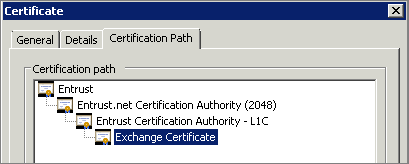
In the image you can see the icons are different.  The first two are the root and intermediate certificates that exclude the private key.  The third one – that we just exported contains the private key.  This is needed to import the cert successfully into TMG

Importing the certificate
You will have to follow this process for every TMG server in your array.

  • Copy the file to the TMG server
  • Open the MMC console
  • Files – Add/Remove Snap In
  • Select Certificates and Click add
  • When Prompted select to manage certificates for "Computer account"
  • Select Local Computer
  • One open expand Certificates – Personal -Certificates
  • Right Click Certificates – All tasks – Import

Follow the wizard and provide the following when prompted

  • File name (of your exported certificate)
  • The password specified during the export
  • Un-check "Mark this key as exportable"
  • Check Include all extended properties
  • Automatically select the certificate store based on the type or certificate
  • Delete the certificate file you copied earlier

Once the import is complete refresh the view.  You should now see the new certificate in the personal store.  If you browse down to the intermediate and Trusted root certificates you should also see the additional certificates.
Double click your new certificate
It should show that everything is working 100% unless there is a rex X dot in the certificate.
On the certificate path tab you should see a nice chain all the way to the top.

Once completed on all the TMG servers you can now choose this for use in a listener.
Important Step – If the certificate contains intermediary or root certificates you will have to reboot the TMG server(s) before it will function correctly
Assign certificate to a listener
Create your listener as per usual.

  • On the connections tab specify "Enable SSL (HTTPS) connections on port:"  – leave it as 443
  • (Optional but reccomened  – Choose  "Redirect all traffic from HTTP to HTTPS" )
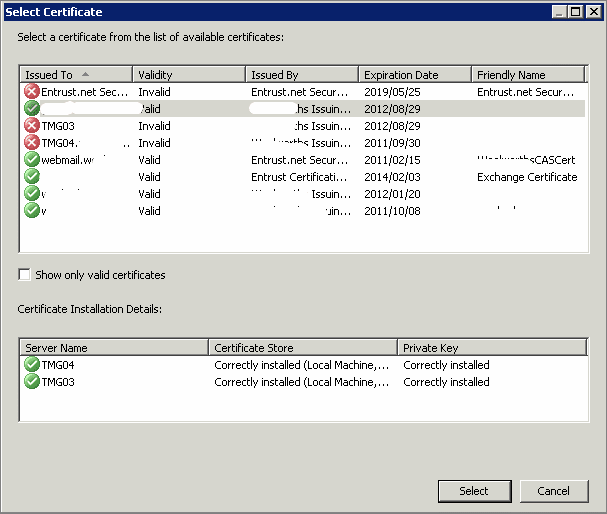
  • From the certificates tab choose the Select certificate button

You should now only see valid certificates. and you exported and imported certificate should be available

You can now use your listener to publish your site in SSL

How to add a default fallback image if no image can be found in a post

http://jetpack.me/2013/10/15/add-a-default-fallback-image-if-no-image/


When you publish a new post on your site, Jetpack crawls it and looks for images that can be used when sharing that post on Facebook, on Twitter, or if that post appears in the Top Posts and Pages widget in your sidebar.

Jetpack starts by looking for a Featured Image. If you didn’t define any, we will look for slideshows and galleries, and then for single images you may have inserted in your posts. If you’ve inserted an image that is hosted on another site, we can use it too.

However, sometimes you may not have added any image to your post. In such cases, you can add this code snippet to your theme’s functions.php file, or in a functionality plugin. This way, your readers will see a default image when sharing that post on Facebook, for example:

function jeherve_custom_image( $media, $post_id, $args ) {
    if ( empty( $media ) ) {
        $permalink = get_permalink( $post_id );
        $url = apply_filters( ‘jetpack_photon_url’, ‘http://www.ovalnews.com/images/ovalnews-default-social-slim1.jpg’ );
    
        return array( array(
            ‘type’  => ‘image’,
            ‘from’  => ‘custom_fallback’,
            ‘src’   => esc_url( $url ),
            ‘href’  => $permalink,
        ) );
    }
}
add_filter( ‘jetpack_images_get_images’, ‘jeherve_custom_image’, 10, 3 );

RemoteApp Articles for Server 2012

http://ryanmangansitblog.wordpress.com/2013/03/27/deploying-remote-desktop-gateway-rds-2012/

http://www.concurrency.com/blog/rds8-gateway-and-certificates-on-windows-server-2012/

http://www.concurrency.com/blog/rds8-quick-and-easy-remoteapp-on-windows-server-2012/

http://microsoftplatform.blogspot.com/2012/03/rds-in-win8-feature-highlight-no-7-ssl.html

http://blogs.msdn.com/b/rds/archive/2009/06/08/introducing-remoteapp-and-desktop-connections.aspx

Why Exchange Databases Might Remain Dirty After ESEUTIL /R Recovery

http://blogs.technet.com/b/mspfe/archive/2012/09/06/why-exchange-databases-might-remain-dirty-after-eseutil-r-recovery.aspx


You’re trying to recover your Exchange database from the “dirty shutdown” state to “clean shutdown.”  You use ESEUTIL /R and after several ill-fated attempts the databases remain dirty.  What’s happening?  Danijel Klaric. a Microsoft Premier Field Engineer based in Germany, sheds some light on why the Exchange 2007/2010 databases might remain dirty after a seemingly “successful” ESEUTIL /R recovery, and provides pointers on how to solve this.  Enjoy his article!


Normally I wouldn’t think that this following topic would ever be a problem, but as I faced the issue two times in the last three weeks, I thought it would be good to shine some light on the subject.

Both customers are using Exchange 2010 with Native Data Protection, and have enabled a seven day lag on one of their database copies to enable their admins to recover items past the “single item recovery” period, or to recover deleted folder structures. Remember that single item recovery doesn’t preserve the folder structure as mails moved to the dumpster are stored in a flat hierarchy.

The Symptom

They thought they were following appropriate Microsoft guidelines to use logs needed to recover the database from the “dirty shutdown” state to “clean shutdown”, so that the database would be usable as a recovery database for extracting the needed content.

1) Collect the database and the required logs

First grab a copy of the edb file and needed logs (i.e. logs needed from database perspective and logs they would like to roll forward to). This can be accomplished by suspending the database copy, and then copying the needed files to a separate location or create a snapshot of the volume which can be reverted to at a later time.

2) Check database state

Run the following: eseutil /mh "c:\DBRecovery\Mailbox Database 0436312751.edb"

eseutil /mh "c:\DBRecovery\Mailbox Database 0436312751.edb"

Check the database header for log files generation needed for the recovery, in this case: Log Required 124-124 (0x7c-0x7c) which means file E000000007C . These log files are needed at a minimum to recover the database to a clean shutdown without data loss.

Side note: If you try to recover the database with only “Log Required” logs and NOT “Log Commited” logs it will throw the following error:

Side note: If you try to recover the database with only “Log Required logs” and NOT “Log Commited” logs it will throw the error:

You can continue with the recovery using /a. And the last committed transaction will be removed from the database and the database will have a clean and consistent state. Otherwise just add the log files mentioned in the “log committed” field to your log directory and this error will disappear.

3) Check consistency of needed logs

Before starting to apply the logs you would like to, it´s important to check if all logs are consistent and available. If you need to handle a large number of logs and have used the Windows Explorer to copy the files, occasionally I’ve seen that some files are missing when sorting them in the Windows Explorer view.

To ensure that you will not fail afterwards when performing the recovery, take a moment and check these. Use eseutil /ml together with your log directory path and log prefix, in my example E00.

Log file check within directory: eseutil /ml c:\DBRecovery\E00

Log file check within directory: eseutil /ml c:\DBRecovery\E00

4) Recover database state to “clean shutdown”

After they finished both checks successfully, they started the recovery using:

eseutil /R E00 /l "c:\DBRecovery" /d "c:\DBRecovery\Mailbox Database 0436312751.edb"

It failed with an Error “-1216”. They did some Internet research and found that this could be fixed by using the “/i"

So their next try was:

eseutil /R E00 /l c:\DBRecovery /d "c:\DBRecovery\Mailbox Database 0436312751.edb" /i

eseutil /R E00 /l c:\DBRecovery /d "c:\DBRecovery\Mailbox Database 0436312751.edb" /i

And YES it results in “Operation completed successfully in 0.140 seconds.” Then they checked the Application event log and YES, there is no Error.

Application event log

Their last check before mounting the database was eseutil /mh "c:\DBRecovery\Mailbox Database 0436312751.edb."  After all that work – STILL a “dirty shutdown” Sad smile.

Note:

The get quick access to their data, they executed the eseutil command using /P for a repair to get the database into a clean shutdown. Microsoft strongly discourages using eseutil /P because it may lead to data loss. The /P should be a measure of extreme desperation when there’s no way at all to recover your database via /R.

Troubleshooting Steps – How did we solve it?

They showed me their eseutil command:

eseutil /R E00 /l "c:\DBRecovery" /d "c:\DBRecovery\Mailbox Database 0436312751.edb” /i

I saw three things I wouldn’t expect to see:

  1. “/i” is a parameter for skipping missing log stream attached databases. In older versions of Exchange one log stream was used per storage group. As a storage group could have contained multiple databases, the “/i” option was provided when only one out of multiple databases has to be recovered.   As Exchange 2010 doesn’t use storage groups any more, this parameter shouldn’t be used any more.
  2. “/d” parameter with the fully qualified path to the EDB file.  You HAVE to use the directory path and NOT the full path to the edb file.
  3. They also didn’t specify a system path, so the actual path of the cmd prompt is used. This directory is used to check for, or to create, an E0x.chk file. I always recommend specifying the same path as the edb and log directory to keep the files together, and ensure that the files you expect to be used are the ones which are always used.

First, I asked them to remove the “/i” parameter and to try it again, they told me that this resulted in the previously mentioned error:  “-1216 (JET_errAttachedDatabaseMismatch)”.

Checking the EventLog after removing the “/i” parameter, it stated that the database file has not been found at path “C:\DBRecovery\Mailbox Database 0436312751.edb\Mailbox Database 0436312751.edb" which makes sense.

Checking the EventLog

After removing the file name and ending “\”, and optionally adding the system directory parameter to the command, we ran eseutil /R E00 /l “c:\DBRecovery” /s “c:\DBRecovery” /d “c:\DBRecovery”.  Running this modified command, everything worked as expected and the database ended up in a “clean shutdown” without any error message.

eseutil /R E00 /l “c:\DBRecovery” /s “c:\DBRecovery” /d “c:\DBRecovery”.

Note: If the database still stays in “dirty shutdown”, check the specified system directory for an e0x.chk file from your previous attempts. This checkpoint file can be safely removed for this recovery process if only logs that are needed for your recovery exist in the log directory. Following that, the command should complete successfully.

So why was this happening?

I was wondering why two different customers would make the “same” mistake using eseutil /r, so I started some Internet research and found sites providing examples using “eseutil /r /d” with the full path to the edb. This will simply not work.  Most of these mention that sometimes this will not work – and recommend using /p to perform a repair of the database. As mentioned, this shouldn’t be the recommended way as long as the edb file and the required logs exist and are available to be used.

Another possible misunderstanding would be that eseutil also incorporates another “MODES OF OPERATION” which use “/d” as a parameter –> Database defrag. So if you use “eseutil /d” to defrag a database you have to specify a complete file path.

Hope this helps. And after reading through this, just sit back and use the ESEUtil parameter which you should try out with your Exchange 2007/2010 server (without any risk):  “eseutil /ESE.”  And give them their credits providing such a solid database Smile.

Thanks goes to Alexandre Costa and James Cameron reviewing this content.

« Previous PageNext Page »
Back to Top