http://www.argyletech.com/pptp-sonicwall.pdf
381KB
You’re trying to recover your Exchange database from the “dirty shutdown” state to “clean shutdown.” You use ESEUTIL /R and after several ill-fated attempts the databases remain dirty. What’s happening? Danijel Klaric. a Microsoft Premier Field Engineer based in Germany, sheds some light on why the Exchange 2007/2010 databases might remain dirty after a seemingly “successful” ESEUTIL /R recovery, and provides pointers on how to solve this. Enjoy his article!
Normally I wouldn’t think that this following topic would ever be a problem, but as I faced the issue two times in the last three weeks, I thought it would be good to shine some light on the subject.
Both customers are using Exchange 2010 with Native Data Protection, and have enabled a seven day lag on one of their database copies to enable their admins to recover items past the “single item recovery” period, or to recover deleted folder structures. Remember that single item recovery doesn’t preserve the folder structure as mails moved to the dumpster are stored in a flat hierarchy.
They thought they were following appropriate Microsoft guidelines to use logs needed to recover the database from the “dirty shutdown” state to “clean shutdown”, so that the database would be usable as a recovery database for extracting the needed content.
First grab a copy of the edb file and needed logs (i.e. logs needed from database perspective and logs they would like to roll forward to). This can be accomplished by suspending the database copy, and then copying the needed files to a separate location or create a snapshot of the volume which can be reverted to at a later time.
Run the following: eseutil /mh "c:\DBRecovery\Mailbox Database 0436312751.edb"

Check the database header for log files generation needed for the recovery, in this case: Log Required 124-124 (0x7c-0x7c) which means file E000000007C . These log files are needed at a minimum to recover the database to a clean shutdown without data loss.
Side note: If you try to recover the database with only “Log Required” logs and NOT “Log Commited” logs it will throw the following error:

You can continue with the recovery using /a. And the last committed transaction will be removed from the database and the database will have a clean and consistent state. Otherwise just add the log files mentioned in the “log committed” field to your log directory and this error will disappear.
Before starting to apply the logs you would like to, it´s important to check if all logs are consistent and available. If you need to handle a large number of logs and have used the Windows Explorer to copy the files, occasionally I’ve seen that some files are missing when sorting them in the Windows Explorer view.
To ensure that you will not fail afterwards when performing the recovery, take a moment and check these. Use eseutil /ml together with your log directory path and log prefix, in my example E00.
Log file check within directory: eseutil /ml c:\DBRecovery\E00

After they finished both checks successfully, they started the recovery using:
eseutil /R E00 /l "c:\DBRecovery" /d "c:\DBRecovery\Mailbox Database 0436312751.edb" 
It failed with an Error “-1216”. They did some Internet research and found that this could be fixed by using the “/i"
So their next try was:
eseutil /R E00 /l c:\DBRecovery /d "c:\DBRecovery\Mailbox Database 0436312751.edb" /i

And YES it results in “Operation completed successfully in 0.140 seconds.” Then they checked the Application event log and YES, there is no Error.

Their last check before mounting the database was eseutil /mh "c:\DBRecovery\Mailbox Database 0436312751.edb." After all that work – STILL a “dirty shutdown”  .
.
Note:
The get quick access to their data, they executed the eseutil command using /P for a repair to get the database into a clean shutdown. Microsoft strongly discourages using eseutil /P because it may lead to data loss. The /P should be a measure of extreme desperation when there’s no way at all to recover your database via /R.
They showed me their eseutil command:
eseutil /R E00 /l "c:\DBRecovery" /d "c:\DBRecovery\Mailbox Database 0436312751.edb” /i
I saw three things I wouldn’t expect to see:
First, I asked them to remove the “/i” parameter and to try it again, they told me that this resulted in the previously mentioned error: “-1216 (JET_errAttachedDatabaseMismatch)”.
Checking the EventLog after removing the “/i” parameter, it stated that the database file has not been found at path “C:\DBRecovery\Mailbox Database 0436312751.edb\Mailbox Database 0436312751.edb" which makes sense.

After removing the file name and ending “\”, and optionally adding the system directory parameter to the command, we ran eseutil /R E00 /l “c:\DBRecovery” /s “c:\DBRecovery” /d “c:\DBRecovery”. Running this modified command, everything worked as expected and the database ended up in a “clean shutdown” without any error message.

Note: If the database still stays in “dirty shutdown”, check the specified system directory for an e0x.chk file from your previous attempts. This checkpoint file can be safely removed for this recovery process if only logs that are needed for your recovery exist in the log directory. Following that, the command should complete successfully.
I was wondering why two different customers would make the “same” mistake using eseutil /r, so I started some Internet research and found sites providing examples using “eseutil /r /d” with the full path to the edb. This will simply not work. Most of these mention that sometimes this will not work – and recommend using /p to perform a repair of the database. As mentioned, this shouldn’t be the recommended way as long as the edb file and the required logs exist and are available to be used.
Another possible misunderstanding would be that eseutil also incorporates another “MODES OF OPERATION” which use “/d” as a parameter –> Database defrag. So if you use “eseutil /d” to defrag a database you have to specify a complete file path.
Hope this helps. And after reading through this, just sit back and use the ESEUtil parameter which you should try out with your Exchange 2007/2010 server (without any risk): “eseutil /ESE.” And give them their credits providing such a solid database  .
.
Thanks goes to Alexandre Costa and James Cameron reviewing this content.
How to Restore an Individual Exchange 2010 Mailbox with Windows Server Backup
In this tutorial I’ll demonstrate the step by step process for recovering individual mailbox items for an Exchange Server 2010 mailbox using Windows Server Backup. This procedure has the following stages:
The mailbox user “Alex Heyne” is being used for this tutorial, and he has the following items in his inbox.

Exchange 2010 Mailbox User
The mailbox server was backed up using Windows Server Backup. You can refer to this tutorial for the exact steps to perform Exchange Server 2010 mailbox server backups with Windows Server Backup.
In this scenario the user has deleted the mail items and they have since been purged from the recoverable deleted items folder as well. Because the mailbox database is still in production we’ll need to use a Recovery Database to restore the backup.
The first step is to perform a restore of the mailbox server backup, redirecting the restore to an alternate location on the server. Start by launching Windows Server Backup, and then in the Actions pane click on Recover to start the Recovery Wizard.

Launch the Windows Server Backup Recovery Wizard
Choose the location of the backup you wish to restore from, and click Next to continue.

Choose the Backup Location to Restore from
Choose the backup date and time to restore from, and click Next to continue.

Choose the Backup Date and Time to Restore from
For Exchange Server 2010 mailbox database restores choose Applications as the Recovery Type. Click Next to continue.

Choose the Recovery Type of Applications
Choose Exchange as the application to recover, and check the box to not perform a roll forward of the database. Click Next to continue.

Select Exchange as the application to recover
This step is very important. Select Recover to another location and enter the path to a folder that is different to the location of the live mailbox database or log files. Click Next to continue.

Select Recover to Another Location
At the confirmation screen if you are happy with the selections you’ve made click on Recover to start the restore.

Click on Recover to start the restore
When the restore has completed successfully you can close the Recovery Wizard.

Close the Recovery Wizard when the restore is complete
On the Exchange Server 2010 mailbox server where the database files were restored open Windows Explorer and look at the folder where the restored files are located. Notice how the recovery process has created the original folder structure for the data under the D:\Recovery folder.

Those restored paths are important for the next steps.
The restored database file will be in a state known as “dirty shutdown”. You can confirm this by running the following ESEUtil command, specifying the path to the restored .edb file on your server.
[PS] D:\>eseutil /mh 'D:\Recovery\D_\Data\EX201\Mailbox Database EX2 01.edb

Extensible Storage Engine Utilities for Microsoft(R) Exchange Server
Version 14.01
Copyright (C) Microsoft Corporation. All Rights Reserved.

Initiating FILE DUMP mode...
         Database: D:\Recovery\D_\Data\EX201\Mailbox Database EX2 01.edb

DATABASE HEADER:
Checksum Information:
Expected Checksum: 0x1d0abd9b
  Actual Checksum: 0x1d0abd9b

Fields:
        File Type: Database
         Checksum: 0x1d0abd9b
   Format ulMagic: 0x89abcdef
   Engine ulMagic: 0x89abcdef
 Format ulVersion: 0x620,17
 Engine ulVersion: 0x620,17
Created ulVersion: 0x620,17
     DB Signature: Create time:12/03/2010 21:20:08 Rand:715244149 Computer:
         cbDbPage: 32768
           dbtime: 21550 (0x542e)
            State: Dirty Shutdown
     Log Required: 143-143 (0x8f-0x8f)
Next check the state of the log files with the following ESEUtil command, specifying the path to the restored log files. Note the end of the path is the log file prefix, in this case “E00″.
[PS] D:\>eseutil /ml D:\Recovery\E_\Logs\EX201\E00

Extensible Storage Engine Utilities for Microsoft(R) Exchange Server
Version 14.01
Copyright (C) Microsoft Corporation. All Rights Reserved.

Initiating FILE DUMP mode...

Verifying log files...
     Base name: E00

      Log file: D:\Recovery\E_\Logs\EX201\E000000007B.log - OK
      Log file: D:\Recovery\E_\Logs\EX201\E000000007C.log - OK
      Log file: D:\Recovery\E_\Logs\EX201\E000000007D.log - OK
      Log file: D:\Recovery\E_\Logs\EX201\E000000007E.log - OK
      Log file: D:\Recovery\E_\Logs\EX201\E000000007F.log - OK
      Log file: D:\Recovery\E_\Logs\EX201\E0000000080.log - OK
      Log file: D:\Recovery\E_\Logs\EX201\E0000000081.log - OK
      Log file: D:\Recovery\E_\Logs\EX201\E0000000082.log - OK
      Log file: D:\Recovery\E_\Logs\EX201\E0000000083.log - OK
      Log file: D:\Recovery\E_\Logs\EX201\E0000000084.log - OK
      Log file: D:\Recovery\E_\Logs\EX201\E0000000085.log - OK
      Log file: D:\Recovery\E_\Logs\EX201\E0000000086.log - OK
      Log file: D:\Recovery\E_\Logs\EX201\E0000000087.log - OK
      Log file: D:\Recovery\E_\Logs\EX201\E0000000088.log - OK
      Log file: D:\Recovery\E_\Logs\EX201\E0000000089.log - OK
      Log file: D:\Recovery\E_\Logs\EX201\E000000008A.log - OK
      Log file: D:\Recovery\E_\Logs\EX201\E000000008B.log - OK
      Log file: D:\Recovery\E_\Logs\EX201\E000000008C.log - OK
      Log file: D:\Recovery\E_\Logs\EX201\E000000008D.log - OK
      Log file: D:\Recovery\E_\Logs\EX201\E000000008E.log - OK
      Log file: D:\Recovery\E_\Logs\EX201\E000000008F.log - OK
      Log file: D:\Recovery\E_\Logs\EX201\E0000000090.log - OK

No damaged log files were found.

Operation completed successfully in 0.922 seconds.
Now we can run ESEUtil in recovery mode to bring the database into a clean shutdown state.
[PS] D:\>eseutil /r E00 /i /l D:\Recovery\E_\Logs\EX201 /d 'D:\Recovery\D_\Data\EX201\Mailbox Database EX2 01.edb'

Extensible Storage Engine Utilities for Microsoft(R) Exchange Server
Version 14.01
Copyright (C) Microsoft Corporation. All Rights Reserved.

Initiating RECOVERY mode...
    Logfile base name: E00
            Log files: D:\Recovery\E_\Logs\EX201
         System files:
   Database Directory: D:\Recovery\D_\Data\EX201\Mailbox Database EX2 01.edb

Performing soft recovery...
                      Restore Status (% complete)

          0    10   20   30   40   50   60   70   80   90  100
          |----|----|----|----|----|----|----|----|----|----|
          ...................................................

Operation completed successfully in 0.985 seconds.
Now run ESEUtil to check the database state again.
[PS] D:\>eseutil /mh 'D:\Recovery\D_\Data\EX201\Mailbox Database EX2 01.edb' | findstr "State:"
            State: Clean Shutdown
Note: if the database is still in a dirty shutdown state you can try a repair using ESEUtil /p instead.
[PS] D:\>eseutil /p 'D:\Recovery\D_\Data\EX201\Mailbox Database EX2 01.edb'

Extensible Storage Engine Utilities for Microsoft(R) Exchange Server
Version 14.01
Copyright (C) Microsoft Corporation. All Rights Reserved.

Initiating REPAIR mode...
        Database: .\Mailbox Database EX2 01.edb
  Temp. Database: TEMPREPAIR1492.EDB

Checking database integrity.

The database is not up-to-date. This operation may find that
this database is corrupt because data from the log files has
yet to be placed in the database.

To ensure the database is up-to-date please use the 'Recovery' operation.

                     Scanning Status (% complete)

          0    10   20   30   40   50   60   70   80   90  100
          |----|----|----|----|----|----|----|----|----|----|
          ...................................................

Integrity check successful.

Note:
  It is recommended that you immediately perform a full backup
  of this database. If you restore a backup made before the
  repair, the database will be rolled back to the state
  it was in at the time of that backup.

Operation completed successfully in 3.547 seconds.
The next stage of the recovery process is creating the Recovery Database. Launch the Exchange Management Shell. Run the New-MailboxDatabase cmdlet with the following parameters:
In this example the following command is run.
[PS] D:\>New-MailboxDatabase RecoveryDB -Server EX2 -Recovery:$true -EdbFilePath 'D:\Recovery\D_\Data\EX201\Mailbox Database EX2 01.edb' -LogFolderPath 'D:\Recovery\E_\Logs\EX201-RecoveryDB'

WARNING: Recovery database 'RecoveryDB' was created using existing file
D:\Recovery\D_\Data\EX201\Mailbox Database EX2 01.edb. The database
must be brought into a clean shutdown state before it can be mounted.

Name                           Server          Recovery        ReplicationType
----                           ------          --------        ---------------
RecoveryDB                     EX2             True            None
Note the warning about the database not being in a clean shutdown state. Since we’ve already brought the database to a clean shutdown state we can now mount the recovery database.
[PS] D:\>Mount-Database RecoveryDB
With the recovery database mounted we can now proceed with mailbox item restores. You can see the available items to restore by looking at the mailbox statistics for the recovery database.
[PS] D:\>Get-MailboxStatistics -Database RecoveryDB

DisplayName               ItemCount    StorageLimitStatus
-----------               ---------    ------------------
Alex Heyne                11                   BelowLimit
SystemMailbox{f13446dd... 1                    BelowLimit
To restore all mailbox items into a sub-folder of the existing mailbox so that they can be inspected use the following command.
[PS] D:\>Restore-Mailbox -Identity "Alex Heyne" -RecoveryDatabase RecoveryDB -RecoveryMailbox "Alex Heyne" -TargetFolder Restore

Confirm
Are you sure you want to perform this action?
Recovering mailbox content from mailbox 'Alex Heyne' in the recovery database 'RecoveryDB' to the mailbox for 'Alex
Heyne (Alex.Heyne@exchangeserverpro.net)'. This operation may take a long time to complete.
[Y] Yes  [A] Yes to All  [N] No  [L] No to All  [?] Help (default is "Y"): y
The restored items will now be visible in the mailbox.

Restored Individual Mailbox in Exchange Server 2010
7 Jan 2009 3:33 PM
Hello AskDS Blog Readers, Mike here again! A common request we hear is how to automatically connect specific network shares to drive letters based on group membership. Mapping network drives based on group membership requires some programming knowledge– either VBScript or command shell (batch files). VBScript based logon scripts can require hundreds of lines of code to provided a complete solution. And batch files require the assistance of helper applications such as IFMEMBER.EXE and NET.EXE, and introduce many challenges with controlling how Windows processes the script. But Group Policy Preferences removes the programming requirement and awkwardness of scripting mapped drives based on group membership. There are many scenarios in which you may want to map a local drive letter to a specific network share to include public drive mappings, inclusive group drive mappings, and exclusive group drive mappings.
Public drive mappings typically do not require membership to a particular group. However, sometimes public drive mappings do not provide enough granularity. Most organizations have data specific to business units such as accounting, marketing, or human resources.. Inclusive Group Drive mappings solve this problem by allowing a configuration that maps a specific drive letter to a specific network share based on the user being a member of a particular group. This ensures members of the accounting unit receive drive letters mapped for accounting and members of human resources map their respective drives. Exclusive drive mappings are not very common; however, they do provide the flexibility to prevent a user from mapping a particular drive letter to a network share if they are not a member of a specific group. A good example of exclusive drive mappings is to prevent the CIO or other executives members from mapping a drive letter in which they are likely to never use. Let us take a closer look at these scenarios
Producing a Group Policy Preference item to create public drive mappings is simple. The GPO containing the preference item is typically linked to higher containers in Active Directory, such as a the domain or a parent organizational unit.

Figure 1 Configuring mapped drive preference item
Newly created Group Policy objects apply to all authenticated users. The drive map preference items contained in the GPO inherits the scope of the GPO; leaving us to simply configure the preference item and link the GPO. We start by configuring the drive map preference item by choosing the Action of the item. Drive map actions include Create, Replace, Update, and Delete. These are the actions commonly found in most preference items. Create and Delete actions are self-explanatory. The compelling difference between Replace and Update is that Replace deletes the mapped drive and then creates a new mapped drive with the configured settings. Update does NOT delete the mapped drive– it only modifies the mapped drive with the new settings. Group Policy Drive Maps use the drive letter to determine if a specific drive exists. The preceding image shows a Drive Map preference item configure with the Replace action. The configured location is a network share named data; hosted by a computer named hq-con-srv-01. The configured drive letter is the G drive. All other options are left at their defaults. This GPO is linked at the contoso.com domain.
The results of this configuration are seen when using Windows Explorer on the client computer. The following picture shows a user’s view of Windows Explorer. We see there is one network location listed here, which is the G drive that is mapped to \\hq-con-srv-01\data.

Figure 2 Public drive map client view
Later, we’ll see how to use exclusive drive mappings with public drive mappings as a way to exclude public drive mappings from a subset of users.
Inclusive drive mappings are drives mapped to a user who is a member of (or included) in a specific security group. The most common use for inclusive drive maps is to map remote data shares in common with a specific sub set of users, such as accounting, marketing , or human resources. Configuring an inclusively mapped drive is the same as a public drive mappings, but includes one additional step. The following image shows us configuring the first part of an inclusive drive mapping preference item.

Figure 3 Inclusive drive mapping
Configuring the first part of an inclusive drive mapping preference item does not make it inclusive; it does the work of mapping the drive. We must take advantage of item-level targeting to ensure the drive mapping items works only for users who are members of the group. We can configure item level targeting by clicking the Targeting button, which is located on the Common tab of the drive mapping item. The targeting editor provides over 20 different types of targeting items. We’re specifically using the Security Group targeting item.

Figure 4 Security group targeting item
Using the Browse button allows us to pick a specific group in which to target the drive mapping preference item. Security Group targeting items accomplishes its targeting by comparing security identifiers of the specified group against the list of security identifiers with the security principal’s (user or computer) token. Therefore, always use the Browse button when selecting a group; typing the group name does not resolve the name to a security identifier.

Figure 5 Configured inclusive security group targeting item
The preceding screen shows a properly configured, inclusive targeting item. A properly configured security group targeting item shows both Group and SID fields. The Group field is strictly for administrative use (we humans recognize names better than numbers). The SID field is used by the client side extension to determine group membership. We can determine this is an inclusive targeting item because of the text that represents the item within the list. The word is in the text "the user is a member of the security group CONTOSO\Management." Our new drive map item and the associated inclusive targeting item are now configured. We can now link the hosting Group Policy object to the domain with confidence that only members of the Management security group receive the drive mapping. We can see the result on a client. The following image shows manager Mike Nash’s desktop from a Windows Vista computer. We can see that Mike receives two drive mappings: the public drive mapping (G: drive) and the management drive mapping (M: drive).

Figure 6 Client view of inclusive drive mapping
The last scenario discussed is exclusive drive mapping. Exclusive drive mappings produce the opposite results of an inclusive drive mapping; that is, the drive map does NOT occur if the user is a member of the specified group. This becomes usefully when you need to make exceptions to prevent specific drives from mapping. Let’s add an exclusive drive mapping to our public drive mapping to prevent specific members of management from receiving the public drive mapping.

Figure 7 Configured exclusive drive mapping
The preceding image shows the changes we made to the public drive mapping (from the first scenario). We’ve added a Security Group targeting item to the existing public drive mapping preference item. However, the targeting item applies only if the user IS NOT a member of the ExcludePublicDrives group. We change this option using the Items Options list. The client view of manager Monica Brink shows the results of applying Group Policy.

Figure 8 Client view of exclusive drive mapping
This client applies two Group Policy objects; each containing a drive mapping preference item. One item contains our public drive mapping with an exclusive security group targeting item. The other GPO contains the management drive mapping with an inclusive security group targeting item. The client processes the public drive mapping GPO; however, the exclusive targeting item verifies that Monica is a member of the ExcludePublicDrives group. Monica is also a member of the Management group. Therefore, Monica’s group memberships prevent her from receiving the public drive mapping and include her in receiving the management drive mapping.
Drive mapping preference items do not require any scripting knowledge and are easy to use. Leveraging targeting items with drive mapping items increases the power in which to manage drive mapping to users and computers. Public drive mappings are typically linked at higher levels in the domain and generally apply to a large subset (if not all) users. Inclusive drive mappings associate as specific subset of data with a specific group of people, often times mapping to logical divisions within an organization such as accounting, marketing, or human resources. Exclusive drive mappings invert the principals of inclusive drive mappings. The user must not be a member of the specified group for the drive mapping to occur.
Be sure to link GPOs high enough in Active Directory so the scope of the drive mapping effects the largest group of user accounts. Obviously, not every GPO should be linked at the domain; however, if there is an accounting organizational unit with three child OUs– then linking at the Accounting OU effects that largest amount of users. Allow your inclusive and exclusive targeting item to do the bulk of your work. GPOs hosting inclusive drive mappings are best used when the number of user needing the drive mapping are fewer than the number who do not. Exclusive drive mappings are best used when the number of user not requiring the drive mapping are fewer than the number that do. These rules help prevent users from becoming members of too many groups and increasing the cost of managing drive mappings within the organization.
– Mike “Play Some Skynyrd!’ Stephens
Found it! just use command prompt with administrator account:
takeown /f "C:\System Volume Information" /R /A
then
cacls "C:\System Volume Information" /T /C /E /P Administrators:F
and now just delete it by a simple command
del "C:\System Volume Information\Sample File.txt"
that’s it!
There are several reasons to use UEFI instead of BIOS. I won’t go into details regarding that. But there are some cases when you already have a fully functional Windows installation running on BIOS and you don’t want to start all over again. Sadly, there are no tools that performs this job. And I found there is not too much documentation regarding how this can be performed either, or even how this should work. Since after some digging and trial-and-error I was able to perform the operation, I will post the instructions for anyone who needs it.
If you have any doubt, feel free to contact me. I will answer whatever (and whenever) I can.
Convert a Windows 7/8 BIOS (MBR) installation to UEFI (GPT) without moving, copying or loosing data.

Steps were performed on Windows 8. Some steps in Windows 7 may have different menus, but the options and results are the same.
). You can skip this step if you have a Windows installation media. Is a good measure to reboot and verify you can start your system from this disc. . This tool will allow you to convert your MBR disc to GPT with the data included. Now Windows 8.1 RTM has been released and people can download Windows 8.1 ISO files for clean installation as described here but when they try to install Windows 8.1 and it asks to enter a valid product key, the entered Windows 8 product key doesn’t work. Even if its a genuine Windows 8 product key, you get incorrect or invalid product key error message.
The reason is unknown but it seems Microsoft did it intentionally. Microsoft didn’t want to release offline ISO files of Windows 8.1 to Windows 8 users, that’s why they programmed it to not accept Windows 8 product keys at the time of installation. Microsoft wants you to update Windows 8 to Windows 8.1 through Windows Store which doesn’t ask any product key as its just upgrading the OS and not performing a clean installation.
Although there are workarounds available for this particular problem. The best workaround is that install Windows 8.1 using a generic product key. Some of you may ask what is a generic product key? Generic product keys can be considered as a dummy key which can be used to install an operating system but it can’t be used to activate the OS. These generic keys are legally distributed by Microsoft and you can find such keys on Microsoft website as well as inside Windows setup folder.
You can get a generic product key for Windows 8.1 from following official Microsoft page:
KMS Client Setup Keys for Windows Operating System
Now you can enter this generic key in Windows 8.1 installation wizard and it’ll accept the product key without any problem.
Once Windows is installed in your computer, you can activate your Windows using your own genuine Windows 8 product key by going to System Properties and clicking on change product key option. Although this product key didn’t work at the installation time but it’ll work at activation time. Windows will activate successfully with the help of your Windows 8 genuine product key. Thus you can install Windows 8.1 using your Windows 8 product key…
Under user profile, dial-in Select Allow for network access
And under the client VPN profile, allow the other options on the bottom of the security tab
http://www.leinss.com/blog/?p=1598
Recently, I was tasked with transporting Windows 7 installed one piece of hardware to another. Not a trivial matter, considering the driver and activation issues. I used Acronis Trueimage 2013 with the Universal Restore feature to accomplish this task and it worked quite well. I was able to take an installation of Windows 7 x64 installed on a Dell Optiplex 390 and transport it safely to a Dell Latitude e6430. The normal barrier for bringing up Windows on different hardware is usually the mass storage drivers. If we can somehow inject the correct drivers offline, we can get into Windows and load the other drivers on an as needed basis.
I set out to do this for free and found this thread: http://www.911cd.net/forums//index.php?showtopic=24245. If the web site is down, you can grab the file from my web site here. Essentially, this VBScript code does just that by invoking the powers of DISM. The first thing you will need is a Vista or later based WinPE disc. You can do this cheaply by tapping the F8 key and picking “Repair my Computer” and then breaking out to a command line. Or you can use Liveboot 2012 from Wondershare. This program is definitely worth the $60 for everything that it can do. Here’s one cool trick you can do with WinPE (unrelated to Universal Restores, but cool none-the-less). Install TightVNC server on a PC. Copy the files screenshooks32.dll and tvnserver.exe from the Program Files directory to a USB key. Now you can run that executable from with-in WinPE. A “V” will appear in the taskbar. Right-click this icon, go to properties and set a password. Now you can VNC into your WinPE boot media!
Run cscript fix_7hdc.vbs from within WinPE. It will ask for the Windows 7 drive: pick C:. It will then ask for the folder containing the mass storage drivers. Drill to that. It will now inject those drivers into the offline Windows 7 install and produce a report afterwards:
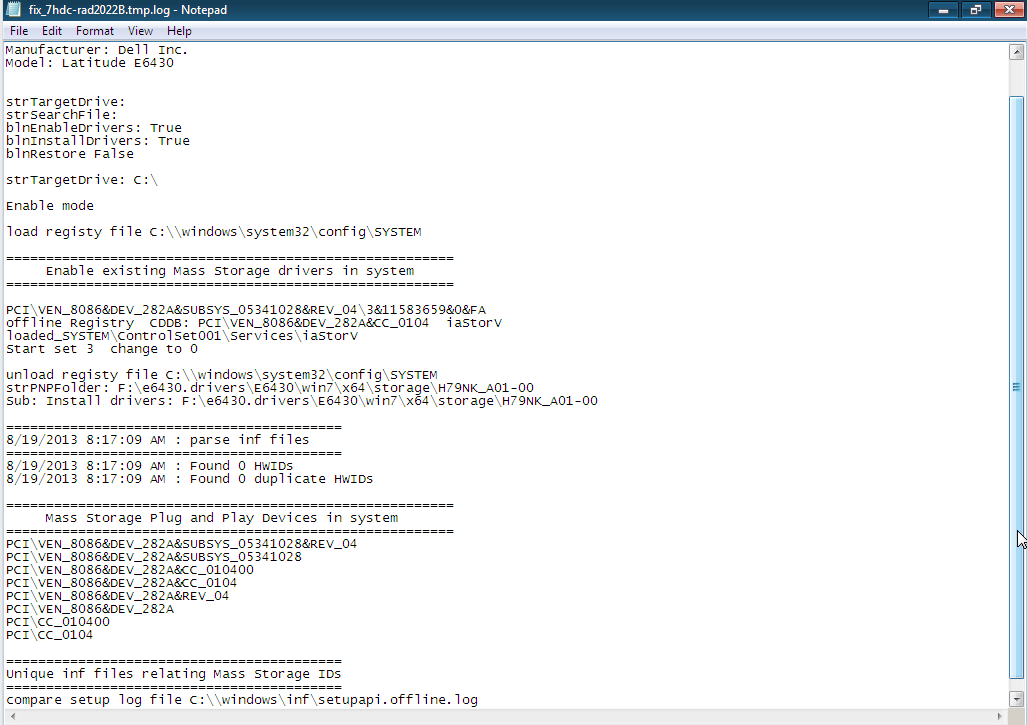
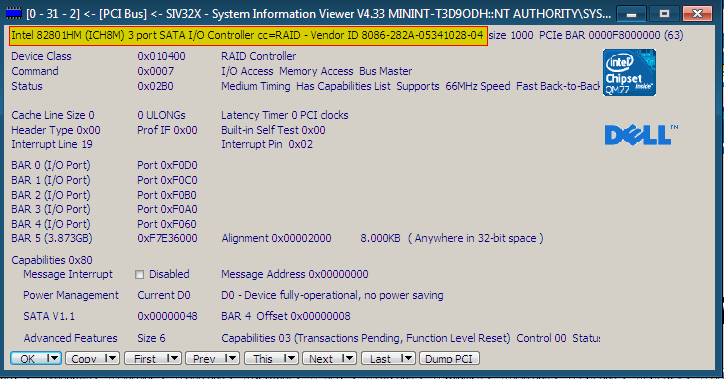
Viola: Universal Restore for free! What if we didn’t know what mass storage drivers we need? Well, within WinPE, we can run AIDA64 and click on the PCI Devices tab to get the vendor and device IDs. If you are cheap and don’t want to spend the $40 for AIDA64, you can also use SIV32: