Category Archives : Uncategorized

PowerShell – Move AD FSMO Roles in Server 2012

http://www.nogeekleftbehind.com/2013/05/28/powershell-move-ad-fsmo-roles-in-server-2012/

PowerShell – Move AD FSMO Roles in Server 2012

Over the long weekend we worked on two projects:

  1. Upgrade the Hyper-V hosts on the cluster at the data center
  2. Finish prepping a new Hyper-V host and Domain Controller for a new branch office with a new subnet

imageSince the cluster at the data center holds all of the Active Directory FSMO roles we needed to transfer the roles to an alternate location on the MPLS network so that project 1 didn’t slow down or stop project 2.

PowerShell to the rescue!

WHICH SERVER HOLDS THE FSMO ROLES?

Open PowerShell as an Administrator and type:

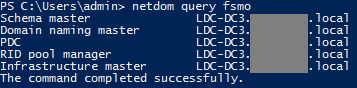
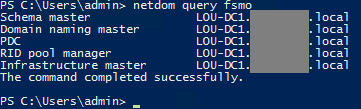
netdom query fsmo

You’ll see each of the 5 FSMO roles and which domain controller holds them.
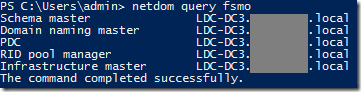
Using PowerShell to transfer FSMO roles

The 5 FSMO roles are numbered 0-4:

0 – PDCEmulator
1 – RIDMaster
2 – InfrastructureMaster
3 – SchemaMaster
4 – DomainNamingMaster

Why do we care what those numbers are? Because we can move the FSMO roles very quickly and save a lot of typing.

For example, which PowerShell command is easier to type?

Move-ADDirectoryServerOperationMasterRole -Identity “Target-DC” -OperationMasterRole SchemaMaster,RIDMaster,InfrastructureMaster,DomainNamingMaster,PDCEmulator

Or this one?

Move-ADDirectoryServerOperationMasterRole -Identity "Target-DC" -OperationMasterRole 0,1,2,3,4

Personally, if you’re moving all the roles at once to the same DC (like when doing some server maintenance) the 0,1,2,3,4 is easy.

Once you type in either of those commands you are prompted with several options for confirmation.

Y, A, N, L, S or ?

Moving FSMO roles with PowerShell

OPTIONS:

If you choose “Y” for Yes, PowerShell will prompt you to move each role,
then move to the next role, like this.
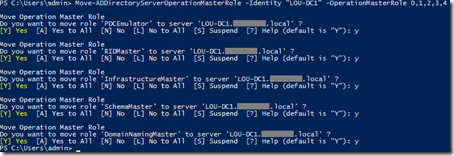
PowerShell FSMO role transfer - individual confirmation

If you choose “N” for No, PowerShell will skip transferring that role.

If you choose “A” for All, PowerShell will try to transfer all 5 roles to Target-DC.

If the transfer of a FSMO role fails PowerShell will let you know loud and clear.

PowerShell FSMO role transfer message

CONFIRMATION:

Unfortunately, if the transfer is successful you basically don’t get any confirmation of the role transfer.

You’ll need to run NETDOM QUERY FSMO to double-check who has the roles.
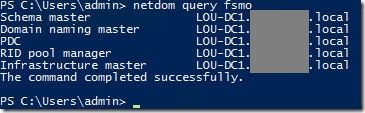
NETDOM QUERY FSMO to double-check FSMO role location

Side note – Once nice thing about using PowerShell to transfer the FSMO roles is that you can script the transfer to run at a scheduled time (so you don’t forget to put the roles back where they should be later).

Also, I didn’t have to load the Active Directory PowerShell module – Windows Server 2012 does that for me automatically.

Windows Server Hacks: Remotely Enable Remote Desktop

http://oreilly.com/windows/archive/server-hacks-remote-desktop.html

Windows Server Hacks: Remotely Enable Remote Desktop

by Mitch Tulloch, author of Windows Server Hacks
05/04/2004

Remote Desktop is a cool feature of Windows Server 2003 that lets you remotely log on to and work at a machine as if you were seated at the local console (in Windows 2000 Advanced Server, this feature was called Terminal Services in Remote Administration Mode). Remote Desktop can be a lifesaver for fixing problems on servers at remote sites, but what if you forgot to enable the feature before you shipped the server out to Kalamazoo? Enabling Remote Desktop is easy if the server is in front of you: just log on as an administrator, open System in Control Panel, select the Remote tab, and under Remote Desktop select the checkbox labeled "Allow users to connect remotely to this computer." Unfortunately, you can’t use the System utility to enable Remote Desktop on a remote machine, though you can access some properties pages of System using Computer Management by first connecting the console to a remote computer, then right-clicking on the root node and selecting Properties. Unfortunately, as you can see in Figure 1 below, the Remote tab is not available when you access System properties this way on a remote machine (here named SRV220).

Figure 1
Figure 1. System properties for a remote machine does not have Remote tab.

Fortunately, there’s a workaround. Sit down at your desk and log on to your Windows XP workstation using your administrator credentials and start Registry Editor by Start –> Run –> regedit –> OK. Then select the Connect Network Registry option under the File menu (Figure 2).

Figure 2
Figure 2. Connecting to the Registry on a remote machine.

This opens the Select Computer search box. Either browse Active Directory to locate the remote server, or type its name in the textbox (Figure 3).

Figure 3
Figure 3. Connecting to the Registry on a remote server named SRV220.

Click OK and a node will be displayed in Registry Editor for the remote machine (Figure 4).

Figure 4
Figure 4. HKLM and HKU hives on SRV220.

Now browse HKLM on SRV to find the following Registry key (Figure 5).

HKLM\SYSTEM\CurrentControlSet\Control\Terminal Server

Figure 5

Figure 5. Registry key for Terminal Server on remote machine.

Under the Terminal Server key, you’ll find a REG_DWORD value named fDenyTSConnection. Double-click on that value to open the Edit DWORD Value box and change the value data from 1 (Remote Desktop disabled) to 0 (Remote Desktop enabled), as in Figure 6 below.

Figure 6

Figure 6. Set fDenyTSConnections to 0 to enable Remote Desktop on SRV220.

The remote machine needs to be rebooted for the change to take effect, so open a command prompt and type the following command:

shutdown -m \\srv220 -r

After the remote machine reboots, Remote Desktop should be enabled on it. To test this from your workstation, open Start –> All Programs –> Accessories –> Communications –> Remote Desktop Connection, enter the name of the remote server in the Remote Desktop Connection logon box, supply your administrator password when prompted, and you’re in.

Jumping a Power Supply for 12 Volts DC

http://open3dp.me.washington.edu/2012/06/jumping-a-power-supply-for-12-volts-dc/

Jumping a Power Supply for 12 Volts DC

Use a 18-20 gauge wire to jump the circuit (they fit well without slipping).

For those of you who have never jumped a power supply the article below is written for you. For those of you who have, just use the images for reference.

The two wires that will produce voltage are green and purple. Depending on where the circuit is jumped you can get the power supply to produce 12 volts. If the fan goes one, you have done it correctly. Always double check the voltage readings with a multimeter.

The double jump is shown since it is not as simple, The single jump works the same, without the wire on the left.

Didn’t work?… I will be more specific.

For a 24 pin it is usually a Single Jump green to black. Sometimes, different black pins work with green. For a 20 pin it is common to require a Double Jump green to black and purple to yellow. You can get a permutation of 4.8-5v and 7.6-8.4v combined to giving out ~ 11.4-12.8volts on the four pin plug used for the Printrboard. If the plug is not required for the board, you can use the black and yellow wires (single or paired) directly into the source. Remember to unplug the power supply, and let the capacitor power down, if you intend to cut the wires. (This means wait until the fan dies, and/or the LED lights go dim)

Wrap clear tape around the wires so they don’t fall out. This preserves the Power supply for other uses. The plastic sheet is taped down near the fan to show: the fan is on and producing suction, so the plastic is flush to the fan intake. (This power supply has an on switch, but no LED light)

12v DC should be produced here.

Note: Most motors in cars are 12V DC.

Junkyards are a great place to be.

This is useful for powering the boards for 3D printers. And, it can be used run any 12V DC motor, as long as the amperage is not ridiculous ie really high, or really low. A great example,  the WOOF group using a (windshield) wiper motor to test out a large extruder driver.

Hint: high torque stepper motors are usually inside the doors driving the power windows. Think about is high surface area with heavy drag, these ones have serious push.

Have fun, and see what you can hack.

WSUS Role failed on Windows server 2012 with error “the operation cannot be completed because the server that you specified requires a restart”

http://eskonr.com/2013/06/wsus-role-failed-on-windows-server-2012-with-error-the-operation-cannot-be-completed-because-the-server-that-you-specified-requires-a-restart/

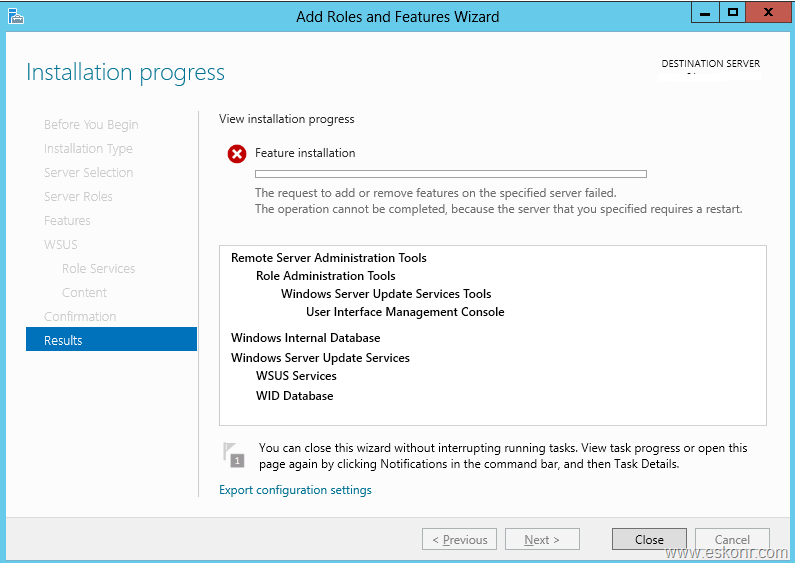
I was trying to setup New Configuration Manager 2012 SP1 build on Windows server 2012 with SQL Server 2012 SP1 installed .Everything went fine except Windows server update services .It keeps saying error with restart needed.Here is what i get every time when i install WSUS after Restart needed.

“The request to add or remove features on the specified server failed. the operation cannot be completed because the server that you specified requires a restart.”

image thumb WSUS Role failed on Windows server 2012 with error “the operation cannot be completed because the server that you specified requires a restart”

Why does it fail every time though server is restarted as stated from above screen ?

Go to event viewer ,windows logs-system ,you see below error message:

The MSSQL$MICROSOFT##WID service was unable to log on as NT SERVICE\MSSQL$MICROSOFT##WID with the currently configured password due to the following error:
Logon failure: the user has not been granted the requested logon type at this computer.
Service: MSSQL$MICROSOFT##WID
Domain and account: NT SERVICE\MSSQL$MICROSOFT##WID
This service account does not have the required user right "Log on as a service."

User Action
Assign "Log on as a service" to the service account on this computer. You can use Local Security Settings (Secpol.msc) to do this. If this computer is a node in a cluster, check that this user right is assigned to the Cluster service account on all nodes in the cluster.
If you have already assigned this user right to the service account, and the user right appears to be removed, check with your domain administrator to find out if a Group Policy object associated with this node might be removing the right.

How do i fix this ?

You need to Assign the Log on as a service user right to NT SERVICE\ALL SERVICES.

This can be implemented via GPO.

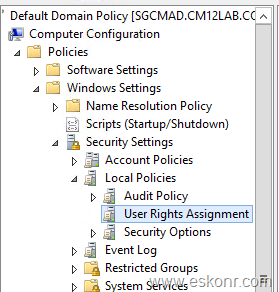
Go to your group policy management console,edit default domain policy

Computer Configuration—>Policies—>Windows Settings—>Security Settings—>Local Policies—>User Rights Assignment

Note: It is not mandatory to edit the default domain Policy to enable this setting.You can also create new GPO and ensure to have Enforced (running on Server 2012) option is selected which can not be overwritten by Default Domain Controller.

image thumb1 WSUS Role failed on Windows server 2012 with error “the operation cannot be completed because the server that you specified requires a restart”

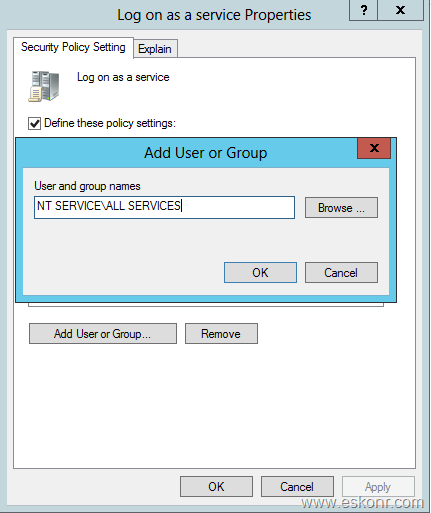
Go to properties of Logon as Service,click on Add user or Group,Enter NT SERVICE\ALL SERVICES ,click ok.

image thumb2 WSUS Role failed on Windows server 2012 with error “the operation cannot be completed because the server that you specified requires a restart”

Now move onto the server,open command prompt and type gpupdate /Force to apply the GPO settings.

To check if the settings are applied or not,you can run rsop.msc from the run command and see the changes applied or not.

Once you confirmed the settings are applied,Start the installation of WSUS role again,this time It should be okay.

Hope it Helps!

Setting is greyed out – Find GPO causing issue

If the setting is defined in a Group Policy, it will be greyed out (regardless of whether you would normally have permission to change it)

To find out what GPO it is set in, you can run Group Policy Results on the computer from the Group Policy Management Console on the server

http://www.microsoft.com/download/en/details.aspx?id=21895

Once you’ve identified the GPO that the setting is defined in, just update the GPO with the new settings and run a gpupdate on the computer to force it to download the new setting

RemoteApp using Windows 8 Hyper-V and a virtual Windows 8

http://publicjotting.blogspot.com/2012/12/remoteapp-using-windows-8-hyper-v-and.html?m=1

RemoteApp using Windows 8 Hyper-V and a virtual Windows 8
Tweak the virtual machine that is going to host the remote apps
Enable Remote Desktop
    1. Winkey + f, click on "settings" to search for settings
    2. Type "remote" as search term
    3. Click "Allow Remote Access To Your Computer" in search result
    4. The System Properties Panels shows: set radio button  for "Allow remote connections to this computer"
    5. Click on "Ok" to close panel.
Enable RemoteApp (by allowing all applications to start via RDP)
    1. Run regedit: win-key + R and type "regedit" (should start elevated)
    2. Navigate to: [HKEY_LOCAL_MACHINE\SOFTWARE\Microsoft\Windows NT\CurrentVersion\Terminal Server\TSAppAllowList]
    3. Change value for "fDisabledAllowList" to "1" (this is default set to "0")

Restart the machine (the virtual one)

Creating a RemoteApp-RDP file
Create basic RDP file / settings
  1. Start RDP client (win-key + r, type "MSTSC" and press enter)
  2. Set basic settings (like hostname / IP, allow me to save credentials)
  3. Click "Show Options" to show more advanced options.
  4. Click "Save As…" and save RDP file to easy location (desktop?)
  5. Open RDP file from step 4 in a text editor
  6. Add the following settings (at the end of the file and without quotes):
    1. "disableremoteappcapscheck:i:1"
    2. "remoteapplicationprogram:s:notepad"
      *Option 2 is the application the start remotely, if app is not in search path of machine you need to provide complete path to exe.
  7. Change to following settings (without quotes):
    1. set value for "remoteapplicationmode:i:"  to "1"
    2. set value for "alternate shell:s:" to "rdpinit.exe"

Double click RDP file just created and application should start as remote app (seamless integration within your own desktop)

Windows 7 – How to rename a corrupt profile

http://www.hancockcomputertech.com/blog/2010/06/15/windows-7-how-to-rename-a-corrupt-profile/

1. Restart PC and Login as a Local Admin or another Domain User.
2. Rename: c:\users\%username%
3. Export (just as a backup in case you need it) and then delete registry key:
“HKEY_LOCAL_MACHINE\SOFTWARE\Microsoft\WindowsNT\CurrentVersion\ProfileList”
(Look through each Profile key under this reg key and view the “ProfileImagePath” to find which key is related to which user)
4. Logout and login as the original user and it will create a new profile for them.

If you do not delete the registry key it will continually give a “temporary” profile to that user infinitely or until you rename their c:\users\%username% folder back.

« Previous PageNext Page »
Back to Top