Category: Uncategorized
Windows 7 – How to rename a corrupt profile
http://www.hancockcomputertech.com/blog/2010/06/15/windows-7-how-to-rename-a-corrupt-profile/
1. Restart PC and Login as a Local Admin or another Domain User.
2. Rename: c:\users\%username%
3. Export (just as a backup in case you need it) and then delete registry key:
“HKEY_LOCAL_MACHINE\SOFTWARE\Microsoft\WindowsNT\CurrentVersion\ProfileList”
(Look through each Profile key under this reg key and view the “ProfileImagePath” to find which key is related to which user)
4. Logout and login as the original user and it will create a new profile for them.
If you do not delete the registry key it will continually give a “temporary” profile to that user infinitely or until you rename their c:\users\%username% folder back.
Disable Sun Java Updates with a Reg Hack
Disable those nasty Sun Java update messages with this fun registry hack! Just copy and save into a REG file, then double-click on the REG file as an administrator (note on Windows x64 you need to change this to HKEY_LOCAL_MACHINE\SOFTWARE\WowNode6432\JavaSoft\Java Update\Policy for 32-bit Java)
Windows Registry Editor Version 5.00
[HKEY_LOCAL_MACHINE\SOFTWARE\JavaSoft\Java Update\Policy]
"EnableJavaUpdate"=dword:00000000
"EnableAutoUpdateCheck"=dword:00000000
"NotifyDownload"=dword:00000000
"NotifyInstall"=dword: 00000000
"UpdateSchedule"=dword: 00000000
Configure Server 2008 VPN Behind Sonicwall TZ 210
http://thisitlife.blogspot.com/2013/01/configure-server-2008-vpn-behind.html
You want to use your Server 2008 as a VPN for accessing remote applications and data at your workplace instead of your VPN firewall or a router that has that option? Understandable. Exciting that you found this post huh? No? Only useful? Well, okay.
First, install the server role.
The server role isn’t called ‘vpn’ or anything like that. Go to Start > Server Manager > Add Roles > Select Network Policy and Access Services > Next > Next.
Select Remote Access Service > Next > Install > The Service takes a long time so make a sandwich or a salad if you’re a vegetarian. When it finishes, click close.
Now go to Start > Administrative tools > Routing and Remote Access > The Server will have a red "south" Arrow on it > Right Click the Server and Select "configure and enable routing and remote access"
Next > Select "Custom Configuration" > Next.
VPN Access > Next
When prompted select "Start Service" > service will start > you can now close the Routing and Remote Access Console.
Make sure the user has ‘dial-in access’ in Active Directory Users and Computers. For example find Joe Smith in Active Directory. Go to his properties. In the dial-in tab, click "allow access."
Now we must go to the Sonicwall device.
Since the Server 2008 box is behind our firewall we must open the correct port and protocol to Server 2008. TCP Port 1723 and GRE (Generic Routing Encapsulation) to be exact.
You will need two rules in your Sonicwall. The first one is NAT.
Source original – any
Source translated – original
Dest original – your public IP
Dest Translated – your vpn server internal IP
Service original – pptp
service tranlated – original
The second rule is a firewall rule.
Wan to Lan
Source – any
Destination – my external IP
Service – pptp
Action – allow
These two rules cover the TCP port 1723 and the GRE protocol requirements.
Now you need to connect your remote client to the VPN server (your server 2008 box).
The following is for Windows Vista and Windows 7 machines.
Click on Start > Control Panel > Network and sharing Center > Connect to a Network > Set up a Connection or Network > Connect To a Workplace > Next.
Use My Internet Connection (VPN) > Enter the public IP address of the VPN server > Enter a Name for the Connection > Next > Enter your Domain Logon details > Connect.
I hope this helps. I couldn’t find a single post covering all of this. There might be one out there. I couldn’t find one so that’s why I wrote this post. Enjoy!
Reinstall SharePoint Foundation 2010
http://technet.microsoft.com/en-us/library/gg680325.aspx
Published: March 10, 2011
Applies To: Windows Small Business Server 2011 Standard
Problem SharePoint Foundation 2010 is still not working after you completed the procedures in the following topics:
- Repair the SharePoint Foundation 2010 Domain Name System
- Repair user access to the internal website
- Repair user access to SharePoint Foundation 2010
- Recreate your SharePoint Foundation 2010 application and content database
Solution If you uninstalled SharePoint Foundation 2010, the database content was not removed, so you can automatically restore the content by reinstalling SharePoint Foundation 2010. If the internal website was working before you uninstalled SharePoint Foundation 2010, you do not need to do any additional configuration after you reinstall SharePoint Foundation 2010.
To reinstall SharePoint Foundation 2010
-
Browse to C:\Program Files\Windows Small Business Server\Bin\CMPNENTS\WSS.
-
Double-click setup.exe.
-
On the User Account Control page, click Continue.
-
Read the license agreement. If you accept the terms, click I accept the terms of this agreement, and then click Continue.
-
Use the default location, and click Install. The installation begins.
-
When the installation is complete, click Close.
-
The SharePoint Products and Technologies Configuration Wizard appears. Click Next. Do not click Yes at this point.
-
Click Start, click Administrative Tools, and then click Active Directory Users and Computers. Expand <domain name>, click MyBusiness, click Users, click SBSUsers, right-click SharePoint Farm Account and click Reset password. Reset the password and unselect the User must change password checkbox.
-
Return to the SharePoint Products and Technologies Configuration Wizard, Click Yes to restart the services.
-
Select Create a new server farm and click Next.
-
For database server, type <server name>\SHAREPOINT
-
For database name, type SharePoint_ConfigurationDatabase
-
For user name, type <domain name>\spfarm
-
For password, type the password you just reset. Click Next.
-
Specify your passphrase and click Next.
-
Select Negotiate(Kerberos) and click Next.
-
Click Yes to confirm. Click Next to begin configuration.
-
Open Registry Editor, navigate to HKEY_LOCAL_MACHINE\SYSTEM\CurrentControlSet\Services\VSS\VssAccessControl\
- Find the entry named NT Authority\NETWORK SERVICE, and then change the value from 0x0 to 0x1.
- Find the entry named: <domain name>\spfarm, and then, if needed, change the value from 0x0 to 0x1.
- Find the entry named: <domain name>\spsearch, and then, if needed, change the value from 0x0 to 0x1.
-
In the Central Administration page, click Cancel.
To recreate a managed account for SharePoint
-
Click Start, click Administrative Tools, click Active Directory Users and Computers, expand <domain name>, click MyBusiness, click Users, click SBSUsers, right-click SharePoint Search Service Account and click Reset password. Unselect User must change password at next logon checkbox and reset the password.
-
Click Start, click Administrative Tools, click Active Directory Users and Computers, expand <domain name>, click MyBusiness, click Users, click SBSUsers, right click Windows SBS Internal Website Account and then click Reset password. Reset the password.
-
In Central Administration page, click Security, and then click Configure Managed Accounts.
-
Click Register Managed Account. Register the following accounts and make sure you select Enable automatic password change and keep the default setting:
- <domain name>\spsearch
- <domain name>\spwebapp
To configure search service for SharePoint
-
Open the Central Administration page, click Manage Services on Server under System Setting.
-
Click Start for SharePoint Foundation Search.
-
Choose <domain name>\spsearch in Service Account.
-
Specify your own Indexing Schedule.
-
Click OK.
Continue the reinstallation process with the section Recreate your SharePoint Foundation 2010 application and content database
Windows Server Backup failed to backup with error 0x81000101
Symptom:
Sometimes Windows Server Backup failed to backup the data. The error is:
The shared restore point operation failed with error (0x81000101) The creation of a shadow copy has timed out. Try this operation again.
In the event viewer, found the following error:
The backup operation that started at ‘**** has failed because the Volume Shadow Copy Service operation to create a shadow copy of the volumes being backed up failed with following error code ‘2155348001’. Please review the event details for a solution, and then rerun the backup operation once the issue is resolved.
Cause:
Windows Server Backup is timing out during shadow copy creation since it is taking more than 10 minutes.
Resolution:
– Run regedit.exe and navigate to "HKEY_LOCAL_MACHINE\Software\Microsoft\Windows NT\CurrentVersion\SPP"
– Create a new Registry value of type DWORD with name "CreateTimeout"
– Change value to 12000000(2*10*60*1000 = 20 mins) in decimal
More information:
How to Move WSUS Content and Database Files to a Different Volume
When trying to free up space, customers frequently have questions about moving WSUS Content and Databases to different partitions. Our objective is to explain three things:
- How to move the WSUS Content
- How to move the WSUS Database files
- How to cleanup the WSUS Database
Start by checking the size of the Volumes by looking at the Server Storage. Open SBS Console and select the Backup and Server Storage Tab. Next, select Server Storage to determine the space available on each partition. When highlighting the C: drive you’ll see the size of the different components that you may wish to move with the Storage Wizards. Today we will focus on moving the WSUS Components. Under the Storage Task the Move Windows Update Repository Data Wizard only moves the downloaded content. This will not move the WSUS Metadata or SUS database (SUSDB.mdf and SUSDB.ldf).

How to Move the WSUS Content
- Open the SBS console and select Backup and Server Storage.
- Select the Server Storage tab.
- Click the Move Windows Update Repository Data Wizard.
- When prompted to take a backup, we recommend that you select Yes.
- Select the new drive location and click Move.
During the move the wizard will create a WSUS directory on the new location and will begin copying the contents into the <Drive>:\WSUS\WsusContent directory.
How to Move the WSUS Database
- Launch SQL Server Management Studio Express console as an administrator. It is located under Start > Programs > Microsoft SQL Server 2005 > SQL Server Management Studio Express.
- Fill in the following information and then click Connect
- Server type: Database Engine
- Servername: \\.\pipe\MSSQL$MICROSOFT##SSEE\sql\query
- Authentication: Windows Authentication

- Expand Databases and right-click on SUSDB and select Tasks > Detach… from the context menu.

- Select the "Drop Connection" checkbox and click OK.

- Open explorer and move the C:\WSUS\SUSDB folder to the <new drive>:\WSUS directory.
- To reattach the database, right-click on Database and select Attach… from the context menu.

- On the Attach Databases page select the Add button.

- Browse to the new location of the SUSDB.mdf database and select OK twice to complete the move.


How to Cleanup the WSUS Database
Note: We recommend you perform these steps after hours due to significant resource requirements.
- Open the native WSUS console. Start > Programs > Administrative Tools > Microsoft Windows server Update Services 3.0 SP1.
- Expand your server and select Options > Server Cleanup Wizard.

- Leave all boxes checked and click Next to start the cleaning process.

Note: This process may take many hours to complete (24+ in some cases). - Once the scan has completed it will display the summary information as shown below. The key information is the Disk space freed by deleting unused content files. Click Finish to complete the wizard.


Exchange Server 2007 Transport: 452 4.3.1 Insufficient system resources
In my hotel room in Orlando, getting ready for an Exchange 2007 transport presentation tomorrow morning at TechMentor. When trying to telnet to the SMTP port of an Exchange 2007 Hub Transport server, I got the following error:
452 4.3.1 Insufficient system resources
Not a good thing the night before a presentation – Murphy’s law at work again!
The Application Event Log has Event ID 15002 from MSExchangeTransport saying “The resource pressure is constant at High. Statistics… “. The event goes on to tell you that inbound mail submission has stopped, and it’s due to disk space being low on the volume where the queue database is located. 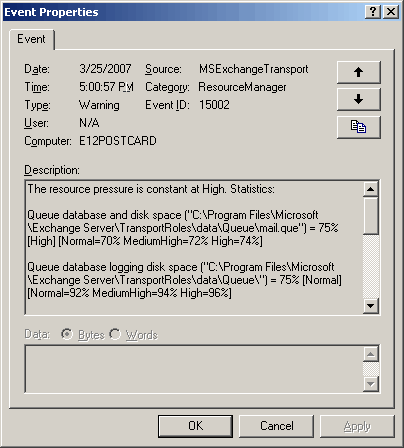
Figure 1: Event ID 15002 logged by MSExchangeTransport
Exchange Server 2007 transport queues are not the familiar .eml files you see in Exchange Server 2003/2000, which reside in the \mailroot\vsi <1>\queue folder (<1> is the instance number of the SMTP virtual server) on the file system. Yes, transport queues have been moved to a JET database of its own.
What’s Back Pressure?
In Exchange Server 2007, the Transport service monitors system resources such as disk space and memory on Transport servers (the Hub Transport and the Edge Transport servers), and stops message submission if it’s running low on these resources. It continues to deliver existing messages in the queue. When resource utilization returns to normal, it resumes message submission. The feature is called Back Pressure.
In this case, Exchange required 4 Gigs of free disk space on the volume where the Queue database was located – I had about 3.95 Gigs. 🙂
Changes to Back Pressure settings in Exchange Server 2007 SP1
The Back Pressure settings in Exchange Server 2007 RTM stop inbound mailflow if free disk space is below 4 Gigs. This static threshold has been lowered in SP1 to a more realistic 500 MB.
The Resolution
Many configuration options for transport servers are saved in an XML file named EdgeTransport.exe.config (it’s the same file name on both server roles— Edge Transport and Hub Transport) located in \Exchange Server\Bin\.
To get transport to resume submissions, you can use any of the following methods. All of the following require you to edit the EdgeTransport.exe.config file.
- Disable BackPressure: Although Microsoft doesn’t recommend it, it does provide a way to Disable Back Pressure
- Tweak BackPressure thresholds: Modify BackPressure parameters to more accurately define what’s high utilization for your deployment or server configurations, as explained in the above docs.
- Move the queue database to another volume: Another resolution, and the one I used in this case, was to move the queue database to another volume with ample of free space, using the following procedure:
-
Add the following key in the <AppSettings> section in EdgeTransport.exe.config, as documented in “How to Change the Location of the Queue Database“:
<add key=“QueueDatabasePath” value=”D:\Queue\QueueDB” />
- Save the file and restart the Microsoft Exchange Transport service from the Services console or by using the Restart-Service cmdlet (Restart-Service MSExchangeTransport).
-
Message submission resumes.
Fixing QuickBooks Problems: Free Tools You Can Use
http://www.sleeter.com/blog/2013/04/fixing-quickbooks-problems-free-tools/
Any time that you are working with a program that runs on Microsoft Windows you have to be ready to fix odd problems that can crop up. QuickBooks is no exception – it relies on many different components and settings in Windows to work properly, and if something isn’t right then QuickBooks just won’t run or install. Let’s talk about some FREE tools that are available to you if you can’t get QuickBooks to install, run or open a company file on your Windows computer.
Fixing these problems can be VERY frustrating because there are an uncountable number of variations in how a Windows computer can be configured. Even if you are successful in getting things running today, the next time you get a Windows Update or install some other program, your QuickBooks installation may fail. Fortunately, Intuit provides us with several tools that can help with many of the problems that you may run into.
Note that these all refer to the Windows Desktop version of QuickBooks, and many of these tools are only available for the US version.
Reboot.bat
This has been around for a long time, but I’m surprised how many advisors don’t know about it. This is a simple “batch” file that QuickBooks will install on your computer. This “re-registers” the various QuickBooks related components with Microsoft Windows.
Without going into a lot of technical detail, just about any program (except small utilities) will most likely be split up into separate “components” that are stored in your system. When you install the program the first time, the installation process “registers” these components with Microsoft Windows so that it knows where they are and that they are executable pieces of the program. This stores information in the “Registry”. Sometimes your “Registry” can be corrupted or altered by some other program, and that may cause a QuickBooks component to be forgotten. The result would be that QuickBooks can’t run properly. The components aren’t deleted or damaged, Windows just doesn’t recognize or find them.
Reboot.bat is a series of commands that will re-register all of the necessary program components with Microsoft Windows. This is a simple, harmless fix that you can try if you can’t get QuickBooks to run.
You’ll find the file in the same folder where your QuickBooks file was installed. Right click on the QuickBooks program icon on your desktop and select Properties, and then click Open File Location (or Find Target in Windows XP). Locate the reboot.bat file and double click it to start it running. Just sit back and let it run, which shouldn’t take long. Then you need to reboot your computer.
See Intuit KB article HOW12420 for details.
QuickBooks Install Diagnostic Tool
Sometimes you just can’t get QuickBooks to install. One of the possible solutions is to run the QuickBooks Install Diagnostic Tool (available at Intuit KB article HOW12407). This will diagnose and repair a number of problems, with the main focus being on the Microsoft .NET Framework (usually error messages 1603, 1904, 1935 and 1722).
This tool is updated often, so if you want to work with it you should always download the latest version. Unfortunately I don’t see where they list the current version number (or release date) in the KB article, but the tool is small and is simple to download.
QuickBooks Component Repair Tool
I didn’t know about this one until my friend Alex at Intuit pointed it out to me. It can be very handy for certain kinds of problems that will prevent QuickBooks from running.
Any time you write a program that runs on Microsoft Windows you are usually relying on a number of “components” that are provided from other sources, including Microsoft themselves. QuickBooks is very typical, and it relies on quite a few different Microsoft components. Unfortunately, there are often many different versions of these components in use by different programs that you install on your computer, so sometimes installing one program may alter the components needed by another program. This SHOULDN’T happen, but it does. Diagnosing and repairing these kinds of problems can be fairly tricky.
The QuickBooks Component Repair Tool (available at Intuit KB article HOW13974) can be used to automatically diagnose and fix issues with several Microsoft components:
- Microsoft .NET Framework
- Microsoft MSXML
- Microsoft Visual C++
QuickBooks File Doctor
The QuickBooks File Doctor (available at Intuit KB article HOW17836) is a tool that you can use to fix certain kinds of file and data corruption, Windows setup problems, and network setup problems. It is not entirely clear to me at this time exactly what problems it will resolve, as the Intuit KB article doesn’t list the issues.
Bill Murphy wrote a two part review of the QuickBooks File Doctor last year, and he was disappointed that it didn’t fix a number of problems in his test file. However, those errors were things like “list corruption” or other database table errors. My understanding at this time is that the File Doctor is aimed primarily at problems that prevent you from opening your QuickBooks file, which usually fall into a different category (and which can be very vexing), as well as networking errors.
There isn’t a comprehensive list of what this tool does. It will address many of the 6000-series errors on file opening, and networking errors like H202 (probably the main one), h303 and H505.
Intuit updates this tool often, possibly as often as once a month, so if you have a situation where you want to try the tool you should always download the latest version. Unfortunately, Intuit doesn’t list the “version” of the tool on their KB article.
This product won’t work with a file larger than 2GB, and the network diagnostic/repair feature might not work properly if you have multiple versions of QuickBooks installed.
Note that this product only works with the US versions of QuickBooks. If you are using the Canadian version of QuickBooks you can use the QuickBooks Canadian Company File Diagnostic Tool. If you are using the UK version of QuickBooks you can use the QuickBooks UK Company File Diagnostic Tool. I suspect that their might be just one tool that works with all three national versions, but I have not tested that in detail.
QuickBooks PDF Repair Tool
I’ve written MANY articles (perhaps too many?) on problems with QuickBooks and the PDF drivers they use. These kinds of problems will prevent you from creating PDF copies of order forms and reports, emailing attached invoices, and reconciling bank accounts. Many of the problems that you could run into can be resolved by using the QuickBooks PDF Repair Tool (available at Intuit KB article SLN40733). Odds are you won’t see that many updates to this tool as time goes on, as a lot of the problems have been fixed starting with QuickBooks 2013 R6.
For an overview of the problems that this tool will fix, look at my article on Digging Into QuickBooks PDF Issues. This tool combines a long list of fixes that people have talked about over the years, including dealing with printer ports, print spoolers, MSXML problems, QBPrint file problems and more.
These Won’t Solve All Problems
This collection of tools won’t cover EVERY problem that you can run into, but they are important tools to have in your toolkit when you are trying to repair a problem installation. They are all free, and very simple to run.
How can I figure out which user modified a file?
http://blogs.msdn.com/b/oldnewthing/archive/2013/04/18/10412074.aspx
The GetFileTime function will tell you when a file was last modified, but it won’t tell you who did it. Neither will FindFirstFile, GetFileAttributes, or ReadDirectoryChangesW, or FileSystemWatcher.
None of these the file system functions will tell you which user modified a file because the file system doesn’t keep track of which user modified a file. But there is somebody who does keep track: The security event log.
To generate an event into the security event log when a file is modified, you first need to enable auditing on the system. In the Local Security Policy administrative tool, go to Local Policies, and then double-click Audit Policy. (These steps haven’t changed since Windows 2000; the only thing is that the Administrative Tools folder moves around a bit.) Under Audit Object Access, say that you want an audit raised when access is successfully granted by checking Success (An audited security access attempt that succeeds).
Once auditing is enabled, you can then mark the files that you want to track modifications to. On the Security tab of each file you are interested in, go to the Auditing page, and select Add to add the user you want to audit. If you want to audit all accesses, then you can choose Everyone; if you are only interested in auditing a specific user or users in specific groups, you can enter the user or group.
After specifying whose access you want to monitor, you can select what actions should generate security events. In this case, you want to check the Successful box next to Create files / write data. This means "Generate a security event when the user requests and obtains permission to create a file (if this object is a directory) or write data (if this object is a file)."
If you want to monitor an entire directory, you can set the audit on the directory itself and specify that the audit should apply to objects within the directory as well.
After you’ve set up your audits, you can view the results in Event Viewer.
This technique of using auditing to track who is generating modifications also works for registry keys: Under the Edit menu, select Permissions.
Exercise: You’re trying to debug a problem where a file gets deleted mysteriously, and you’re not sure which program is doing it. How can you use this technique to log an event when that specific file gets deleted?