Automated Photoshop Image Resize
http://www.tjhole.com/use-photoshops-batch-command-to-save-images-for-web/
PDF instructions because WordPress sucks.
Whilst it is fairly straightforward to use the Save For Web tool in Photoshop the monotony of repeating this task for dozens of images can be quiet daunting.
This post will walk you through to create a simple Action to allow you to quickly resize whole batches of images in one go.
Step 1. Create a Web Optimisation Action to Taste
Open the image. For this tutorial I will be using a scan of a 120 image that is bright and vivid.
First you need to make sure the Action panel is visible in Photoshop.
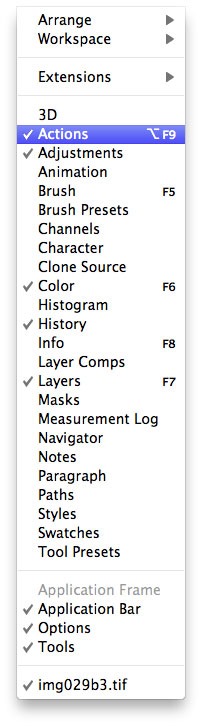
The panel should look similar to this
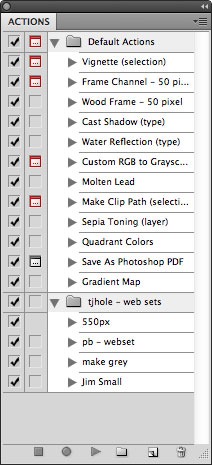
Click the folder Icon at the bottom of the panel to create a new set.
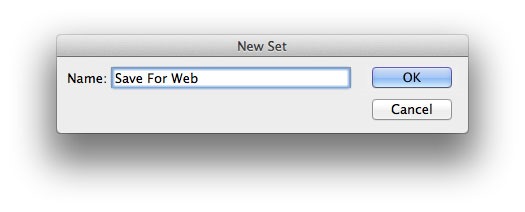
A new folder will appear. (Note you can create the action in an existing folder if you wish)
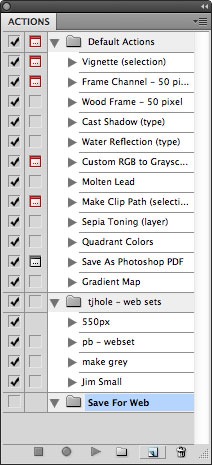
Click the New Action icon between the folder icon and the bin.
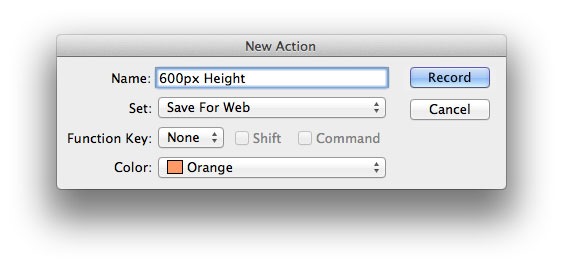
Note you can assign a shortcut to the action so can quickly access it in future.
Once you have created the New Action it will automatically start recording.
Note you can pause/restart recording using the Stop/Record icons at the bottom of the panel
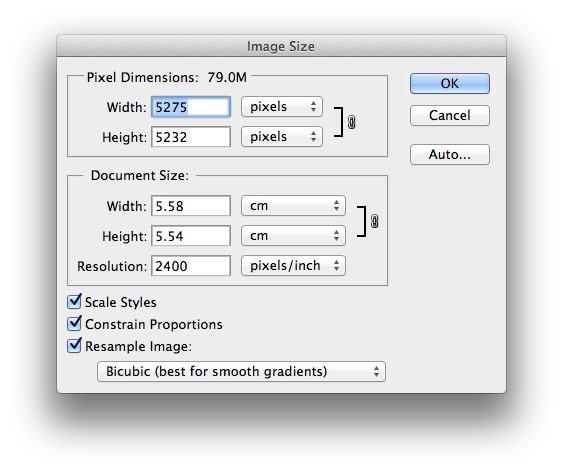
Open up the Image Size dialogue
Image->Image Size
The image I am using for this tutorial is a scan and the resolution is very high. A normal digital photography will be 240dpi/300dpi (pixels/inch).
Screen resolution is 72dpi. Change your Resolution to 72dpi (pixels/inch)
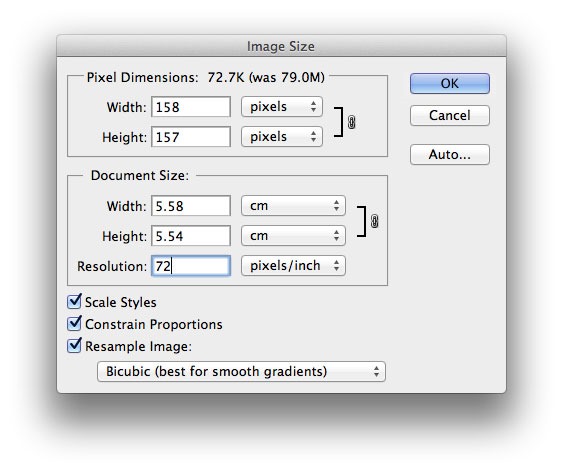
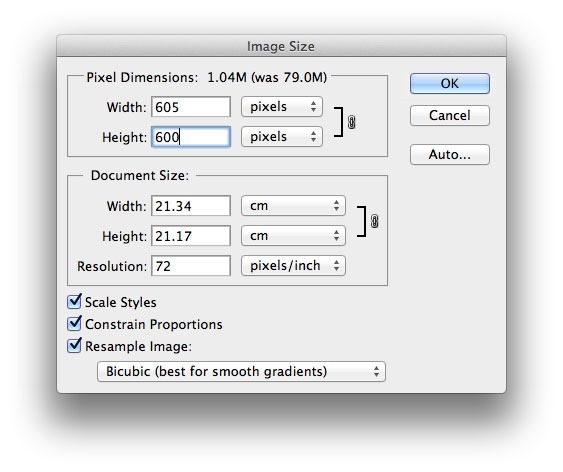
You will notice the width decreases from 5275pd to 158px. Now change your Height/Width dimension to the desired size.
Note if you wish to resize all your images to have a height of 600px set height to 600px, if you want to resize all the images width to 600px set the width to 600px.
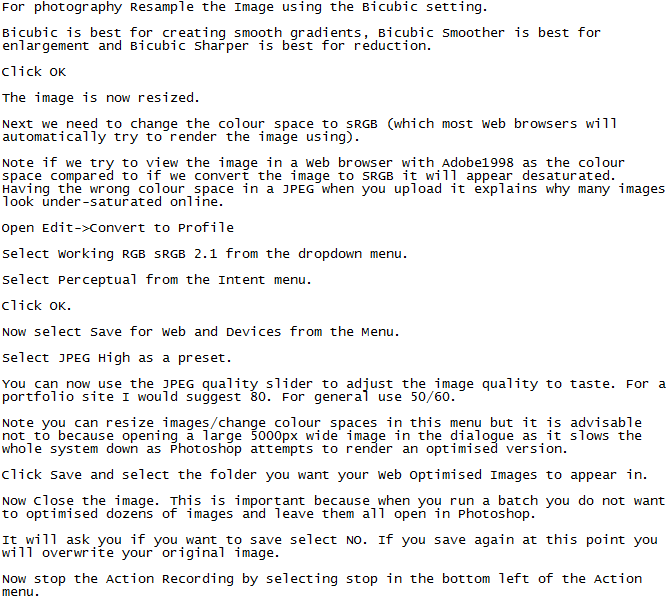
Step 2. Use Batch to Run the Web Optimisation Action for multiple files
Now your action is complete you can open any image, run the action and know that it will save the Web optimised image using your settings.
However what is really helpful is using the BATCH command to open and optimise large number of images.
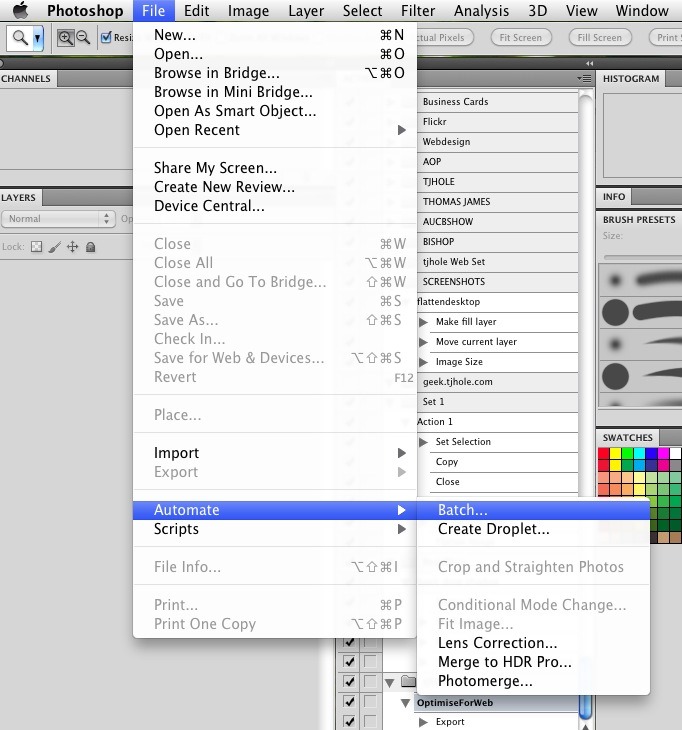
Open File->Automate->Batch.
When the batch dialogue opens select your Set/Action.
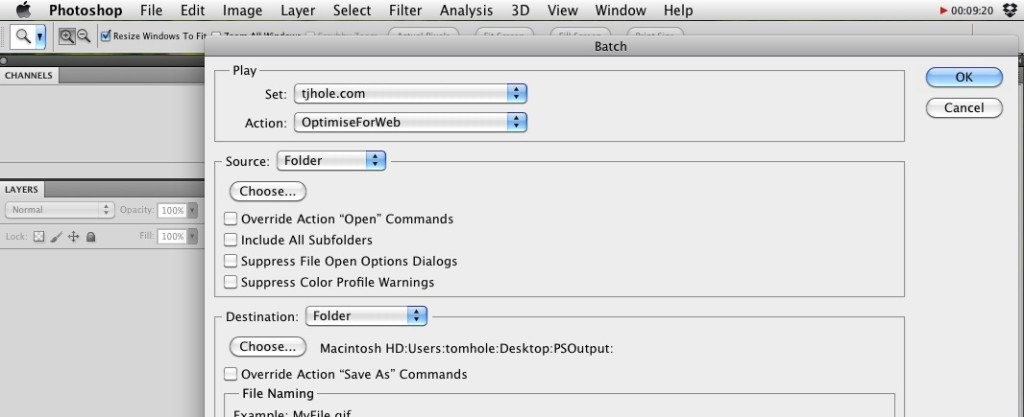
For the source select Folder, and Choose the directory where the images you want to optimise are stored.
Click OK.
It is worth noting this is a very basic application of the BATCH command and that you can use actions to build up more complex workflows.