Category Archives : Uncategorized

Dell OEM Activation issues W8 preinstalled and W8.1 reinstalled cleanly

Generics

XKY4K-2NRWR-8F6P2-448RF-CRYQH (Windows 8 Professional)
RR3BN-3YY9P-9D7FC-7J4YF-QGJXW (Windows 8 Professional with Media Center)
FB4WR-32NVD-4RW79-XQFWH-CYQG3 (Windows 8 [Home])
XHQ8N-C3MCJ-RQXB6-WCHYG-C9WKB (Windows 8.1 Professional)
GBFNG-2X3TC-8R27F-RMKYB-JK7QT (Windows 8.1 Professional with Media Center)
334NH-RXG76-64THK-C7CKG-D3VPT (Windows 8.1 [Home])


http://rweverything.com/

ACPI Table > MSDM Tab

How to change your Office 365 App Password


http://www.c7solutions.com/2015/03/how-to-change-your-office-365-app-password

If you are enabled for Multi-Factor Authentication (MFA) in Office 365 then you will need an App Password for some applications that do not support MFA. The user interface for creating a new App Password is quite well hidden in Office 365 (its not on the Password page for example).

Here is how to find it.

  1. The user logs into Office 365 portal (http://portal.office.com) and clicks the cog icon to the top-right of the page
  2. Click Office 365 Settings
  3. Scroll down past Password and choose Additional Security Verification
  4. Click Update my phone numbers used for account security
  5. Click “app passwords” on the top menu. This takes you to https://account.activedirectory.windowsazure.com/AppPasswords.aspx. You can (and therefore should) bookmark this page now so you don’t need these instructions again!
  6. Create yourself an additional app password and give it a description.
  7. Use the new app password in the program that you need to login to.

POP3 Connector Mail Download limit

http://exchangemaster.wordpress.com/2010/01/13/pop3-connector-mail-download-limit/

If you have SBS and are getting the following errors.

Source: Windows Small Business Server 2008
Event ID: 210
Task Category: Windows SBS POP3 Connector
Description:
One or more messages (1) were left in the “” account on the POP3 server
“” because they are larger than the maximum acceptable
message size

You can increase the message size limit but I would strongly suggest you make sure you have the horsepower to do this or you WILL have performance issues trying to transfer large mail.

That being said, from the Exchange Powershell run the following

This command will display the current size

Get-ReceiveConnector | select identity, maxmessagesize

This will set the size to 50mb and the timout to 9 min.

Get-ReceiveConnector | Set-ReceiveConnector -MaxMessageSize 50mb -ConnectionInactivityTimeout 00:09:00

Then restart transport…

This will set all receive to 50 mb, use with caution

Quickie: changing message size limits on SBS std 2008 and 2011

http://blog.lan-tech.ca/2011/10/27/quickie-changing-message-size-limits-on-sbs-std-2008-and-2011/

Many clients today want to be able to send and/or receive messages with large attachments. By default SBS has built-in limits of 10 MB for both. To keep this simple and short I will not go into into practical limits or all the detailed options available. I do however recommend reading the link below, from which the information was gathered to get a better understanding of all limits and parameters:

http://blogs.technet.com/b/sbs/archive/2008/10/28/how-do-i-change-message-size-limits-in-exchange-2007.aspx

Note: This assumes a default SBS 2008/2010 environment, not an Exchange standalone (non-SBS) configuration and you have not edited the default send/receive connectors. If in doubt you can verify the connector names with the commands at the end of the article .

To raise the current default limit from 10 MB to 25 MB (as an example) cut and past the following 3 lines, one by one, into the EMS (Exchange Management Shell) located under All Programs / Microsoft Exchange Server 20xx. You need to substitute your SBS server name for ServerName.

  • Set-TransportConfig –MaxSendSize 25MB –MaxReceiveSize 25MB

  • Set-ReceiveConnector “Windows SBS Internet Receive ServerName” –MaxMessageSize 25MB

  • Set-SendConnector “Windows SBS Internet Send ServerName” –MaxMessageSize 25MB

Should you wish to review the current settings or connector names you can use the following commands.

  • Get-TransportConfig | ft name, MaxSendSize, MaxReceiveSize
  • Get-ReceiveConnector | ft name, MaxMessageSize
  • Get-SendConnector | ft name, MaxMessageSize
  • Get-mailbox | ft name, MaxSendSize, MaxReceiveSize

NTP DC Time Sync

When we are running a greenfield deployment, a migration, or a domain reconfiguration one of the key configurations to get right is the Domain Time setup.
We’ve had situations where anomalies in the time setup have brought down clusters (node’s time was out of whack).
In Hyper-V Management disable time integration for the DC(s).
On the primary DC (PDCe) VM that will be the time authority for the domain we run the following steps (please copy and paste into NotePad to clean up):
w32tm /config /syncfromflags:manual "/manualpeerlist:0.ca.pool.ntp.org,0x1 1.ca.pool.ntp.org,0x1 2.ca.pool.ntp.org,0x1 3.ca.pool.ntp.org,0x1" /reliable:yes
w32tm /config /update
net stop w32time && net start w32time
w32tm /resync /force
w32tm /query /source
If you hit ENTER after the last line above and copy from the line underneath to the beginning of the first line and paste into an elevated CMD all of the steps will run automagically. Note that the NTP.ORG servers are Canadian localized. There are servers for most regions in the world.


On every other DC in the domain we run the following steps in an elevated CMD:
w32tm /config /syncfromflags:domhier /reliable:no /update
net stop w32time && net start w32time
w32tm /resync /force
w32tm /query /source
Note that the above step(s) may need to be run a couple of times to get the settings to seat.


Once the above setup has been completed the domain’s time should remain on time. If there are any issues with time, that is it starts to slip or jumps ahead, check in Hyper-V Management to see if the IS setting for Time Sync has not somehow become enabled again.
If it has run the above steps again to reseat the settings.
NOTE: For SQL or high load VMs that tend to skew time, we’ve seen situations where the VM’s time skews before our eyes, then set up a BATCH file with the following in it:
w32tm /resync /force
Set it to run in the VM’s Task Scheduler every five minutes. If time still gets too far out of whack then decrease the time increment until the VM keeps its time as much as possible.

Automated Photoshop Image Resize

http://www.tjhole.com/use-photoshops-batch-command-to-save-images-for-web/

PDF instructions because WordPress sucks.

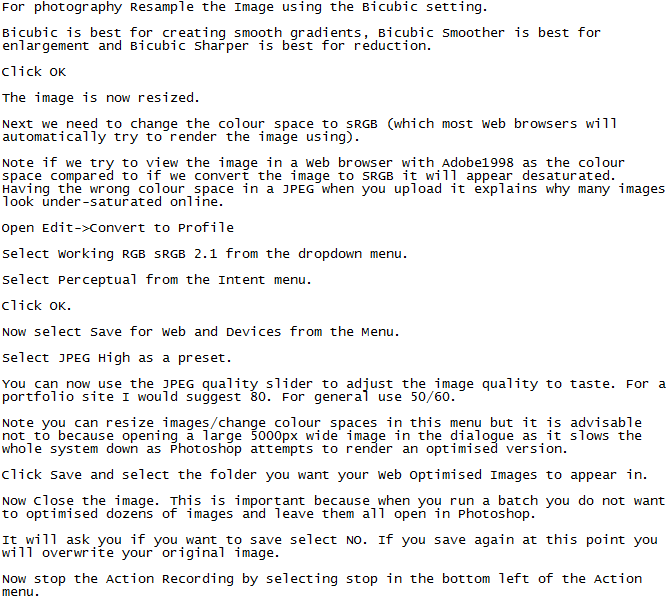
Whilst it is fairly straightforward to use the Save For Web tool in Photoshop the monotony of repeating this task for dozens of images can be quiet daunting.

This post will walk you through to create a simple Action to allow you to quickly resize whole batches of images in one go.

Step 1. Create a Web Optimisation Action to Taste
Open the image. For this tutorial I will be using a scan of a 120 image that is bright and vivid.

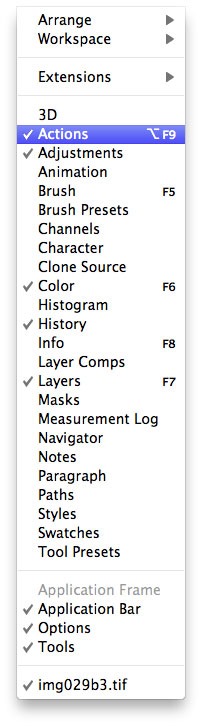
First you need to make sure the Action panel is visible in Photoshop.

1


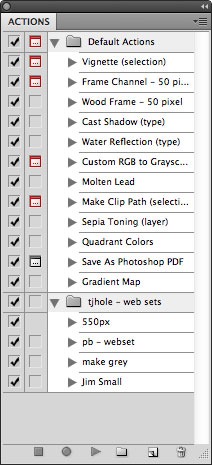
The panel should look similar to this

2

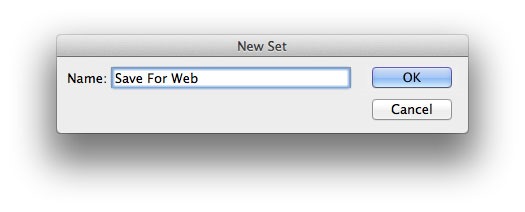
Click the folder Icon at the bottom of the panel to create a new set.

3

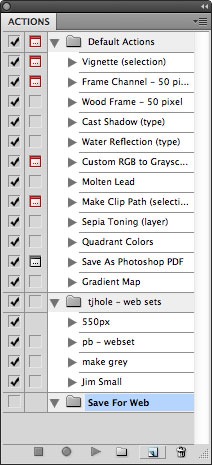
A new folder will appear. (Note you can create the action in an existing folder if you wish)

4

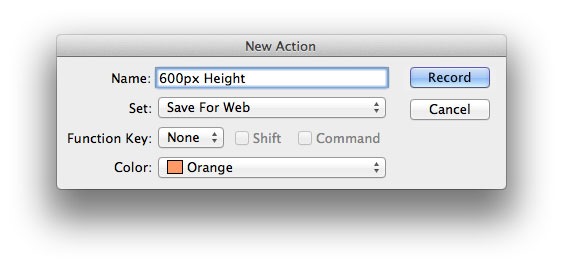
Click the New Action icon between the folder icon and the bin.

5

Note you can assign a shortcut to the action so can quickly access it in future.

Once you have created the New Action it will automatically start recording.

Note you can pause/restart recording using the Stop/Record icons at the bottom of the panel

6

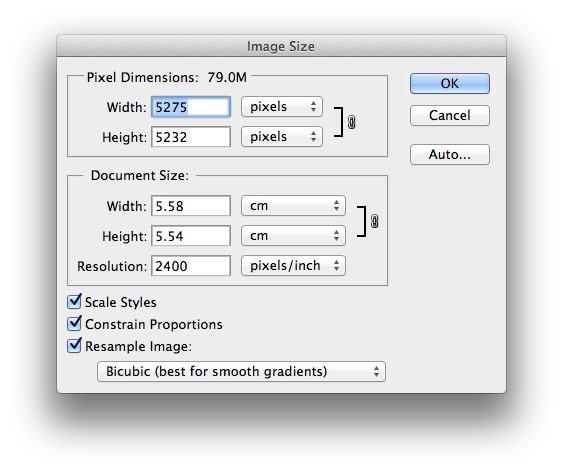
Open up the Image Size dialogue

Image->Image Size

The image I am using for this tutorial is a scan and the resolution is very high. A normal digital photography will be 240dpi/300dpi (pixels/inch).

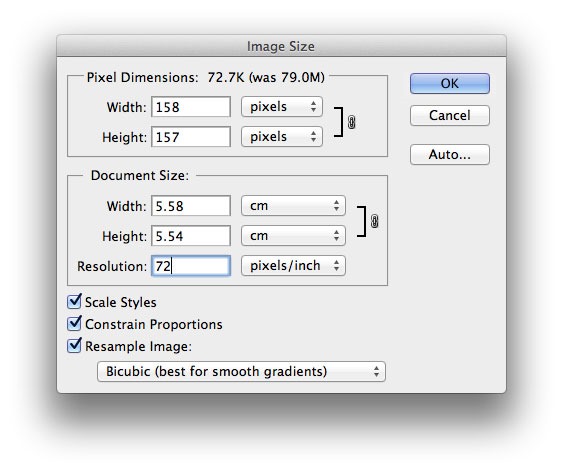
Screen resolution is 72dpi. Change your Resolution to 72dpi (pixels/inch)

7

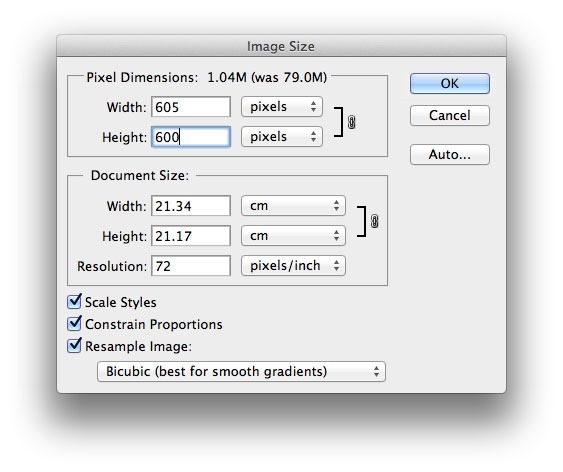
You will notice the width decreases from 5275pd to 158px. Now change your Height/Width dimension to the desired size.

Note if you wish to resize all your images to have a height of 600px set height to 600px, if you want to resize all the images width to 600px set the width to 600px.

8


dumb-word-press-sucks


Step 2. Use Batch to Run the Web Optimisation Action for multiple files

Now your action is complete you can open any image, run the action and know that it will save the Web optimised image using your settings.

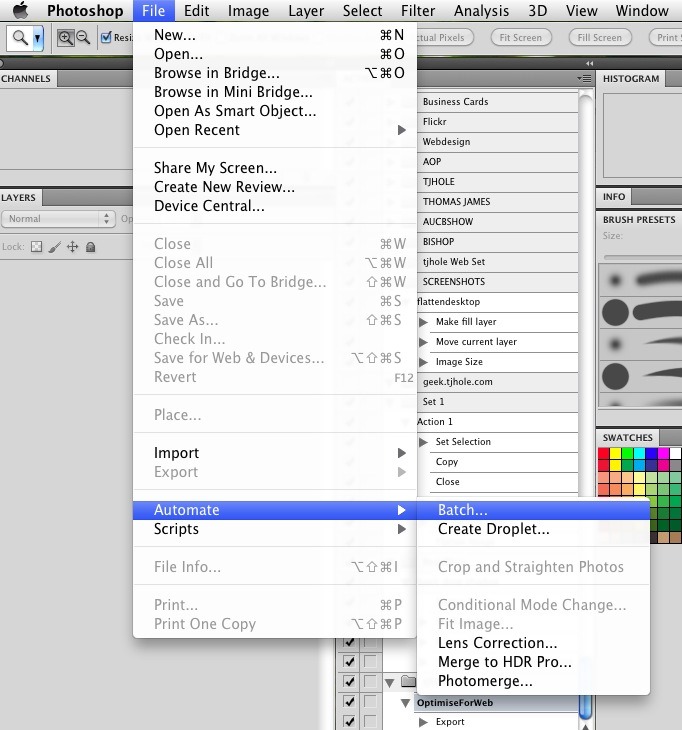
However what is really helpful is using the BATCH command to open and optimise large number of images.

Open File->Automate->Batch.

9

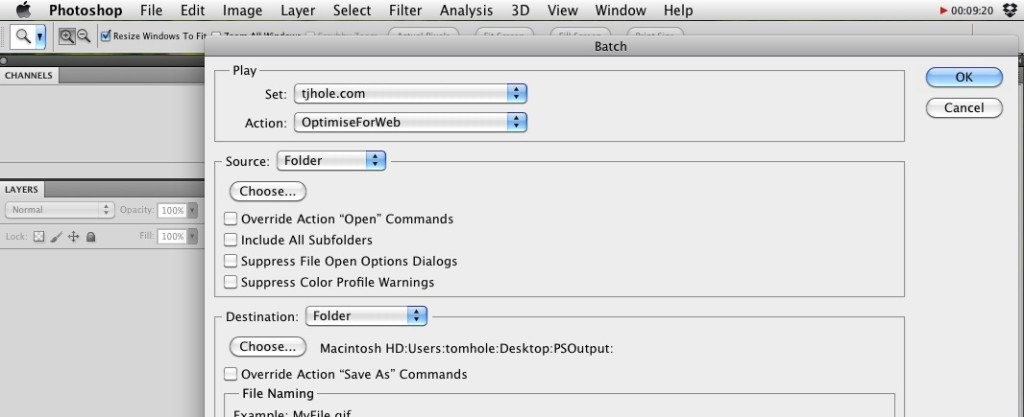
When the batch dialogue opens select your Set/Action.

10

For the source select Folder, and Choose the directory where the images you want to optimise are stored.

Click OK.

It is worth noting this is a very basic application of the BATCH command and that you can use actions to build up more complex workflows.

NTP Time Sync on Domain Controller

net stop w32time

w32tm /config /syncfromflags:manual /manualpeerlist:"time-a.nist.gov, time-b.nist.gov, time-c.nist.gov, time-d.nist.gov"

w32tm /config /reliable:yes

net start w32time

******

w32tm /query /configuration

NTFS MetaFiles

http://blogs.technet.com/b/askcore/archive/2013/11/08/3303108.aspx
They sit there, hiding in the root directory…metafiles. The shell hides them from the user, but they are still there…lurking. Microsoft does a pretty good job hiding these files so you don’t accidentally damage them. But what are these files and how does NTFS use them?

Before we have a look at them I’d like to issue a warning…

WARNING!!! Do NOT try to alter or delete these files. Doing so can and will cause permanent damage to your file system. And more than likely CHKDSK won’t be able to save you. You will lose all your data if you ignore this warning.

Hopefully you are now sufficiently scared.

If you haven’t already done so I recommend you read my blog entitled “The Four Stages for File Growth” to give you a better idea of how files are stored on your hard drive. It isn’t required for understanding this blog but it would help.

Now let’s have a look at these elusive files.

File 0 – $MFT: Not to be confused with the actual MFT (Master File Table), the $MFT tells us where all the pieces of MFT are. The MFT is part of the $MFT file. And the $MFT file is contained within the MFT. It’s this whole ‘chicken and the egg’ thing.

$MFT – A file in the Master File Table (MFT)

MFT – The table that contains all file records

What makes it confusing is that the entire MFT is in the $MFT file and the file record for $MFT is found in the MFT.  They are separate structures but each one contains the other.

File 1 – $MFTMirr: This file tells us the location of a backup of the first few files in the MFT. In data recovery situations, where the beginning of the MFT is damaged, this mirror can help save the day. I’ve used it a number of times myself.

File 2 – $LogFile: This is simply a journal of the NTFS’s metadata transaction. Like most metafiles, it is not human readable and not meant for use by the user. Corruption of this file can cause you not to be able to mount the file system. This can be easily fixed by simply resizing the file. These two commands can assist with that….

Chkdsk <drive:> /L

(to find out the current size for $LogFile)

Chkdsk <drive:> /f /L:<new size>

(to resize$LogFile)

File 3 – $Volume: This file keeps record of the NTFS version, volume information, and the volume label. So if you name your volume ‘DAVE’, this is the file that stores that information

clip_image002

File 4 – $AttrDef: The $AttrDef file defines the different attributes that the file system can have. Here is a list of the attribute types available:

$STANDARD_INFORMATION

$ATTRUBUTE_LIST

$FILE_NAME

$VOLUME_VERSION

$OBJECT_ID

$SECURITY_DESCRIPTOR

$VOLUME_NAME

$VOLUME_INFORMATION

$DATA

$INDEX_ROOT

$INDEX_ALLOCATION

$BITMAP

$SYMBOLIC_LINK

$REPARSE_POINT

$EA_INFOMRATION

$LOGGED_UTILITY_STREAM

NOTE: Do not confuse file attributes like $DATA and $FILE_NAME with attributes like READ-ONLY, SYSTEM, or HIDDEN (which are actually just flags).

File 5 – (.): The dot (.) is the root directory for the volume. So when you do a ‘dir’ of c:\, you are looking at the dot (.).

File 6 – $Bitmap: This file keeps track of all the clusters of the volume and whether or not each cluster is currently in use. That’s how we can quickly determine how much free space you have. We just ask $Bitmap.

File 7 – $Boot: Contains boot sector and the boot strap (the first 16 sectors of the volume). The boot sector contains the location of the $MFT and $MFTMirr. Otherwise we wouldn’t know where to look for them.

clip_image004

In the image above, all parts of the $BOOT file are shown in RED. The file starts in the MFT and points back to the beginning of the volume for its $DATA attribute, which contains the boot strap. It is this boot strap code that tells us what boot loader we are using (NTLDR for Windows XP/Windows 2003 and BOOTMGR for Vista/Windows 2008). Also the boot sector tells us the location of the MFT. This is part of how Windows is able to locate files during the early stages of bootup, before the NTFS.SYS driver actually loads.

File 8 – $BadClus: Keeps a record of the clusters on your volume that contain physically bad sectors. We mark them bad so we don’t try to use them. If you ever run CHKDSK with a /r switch, then you are telling CHKDSK to update $BadClus with any new bad sectors that are found.

File 9 – $Secure: Contains security information. For obvious reasons, I’m not going to tell you how it works.

File 10 – $UpCase: This file contains the casing table.

Trivia – For the young folks that don’t know, the terms upper case and lower case came about with the early printing presses that kept the capitol letters in the upper drawer or case, while the more often used small letters were stored in the closer, lower case.

File 11 – $Extend: A directory that can house files used for optional extensions.

That’s about it. Microsoft reserves space in case we want to add any additional files. So you won’t start seeing normal files until File 17.

Exchange 2010 mailboxes inherit IMAP folder views and attributes if imported from a PST dump of an IMAP account

http://mellositmusings.com/2012/08/29/exchange-2010-mailboxes-inherit-imap-folder-views-and-attributes-if-imported-from-a-pst-dump-of-an-imap-account/

Exchange 2010 mailboxes inherit IMAP folder views and attributes if imported from a PST dump of an IMAP account

Posted on August 29th, 2012

I recently had to migrate 9 IMAP accounts from GoDaddy to our Exchange 2010 server. Since GoDaddy does not offer export services and it was only 9 accounts we decided to use a handful of Outlook profiles to connect to the GoDaddy IMAP accounts and pull down a full copy of the mailboxes. The exact process we used is as follows:

  1. Use Outlook to connect to the IMAP accounts in question and pull down a full copy of the mailbox. You may run into issues accessing multiple large IMAP accounts from 1 Outlook profile. In my experience 5-10 accounts per profile should be ok.
    1. By default Outlook will only pull down the headers of IMAP messages, so you will need to instruct Outlook to do a full sync
    2. This is done under the Send/Receive Ribbon Tab -> Send & Receive Section -> Send/Receive Groups -> Define Send/Receive Groups…
    1. In the Send/Receive Groups window, highlight All Accounts and <click> the Edit…button
    1. Under the Accounts section make sure to highlight the IMAP account in question, and in the section labeled Account Options <select> one folder’s check box. Then <select> the radio button for Download complete item including attachments. Finally <left click> on the same folder and you should see an option to select and apply the same item to all folders with in this IMAP account. Repeat for each IMAP account
    1. Now perform a send/receive and wait for the all the messages to come down
  1. Since Outlook creates a PST file for each synced IMAP account (C:\Users\ACCOUNT\AppData\Local\Microsoft\Outlook) they can be used to directly import the mailbox into an Exchange account
  2. On my Exchange server I created 3 empty accounts (the reaming 6 became distribution groups) and used the following PowerShell command to import each PST into the corresponding empty exchange account
    1. New-MailboxImportRequest –Mailbox USERNAME –FilePath \\NETWORK\PATH\OF\IMAP.PST
    1. You also create a script to pull them all in at once, here’s an example of one way to do it if the PST file names match the user name
      1. Dir \\NETWORK\PATH\OF\*.PST | %{New-MailboxImportRequest –Name ImportOfPst –BatchName ImportPstFiles –Mailbox $_.BaseName –FilePath $_.FullName}

In our case these imported mailboxes belonged to a small consulting company that was purchased by my company. The users getting these email boxes already had accounts on our Exchange 2010 server and these imported accounts would be used to continue any business correspondences still associated with the old company.

So we gave the user’s send as and full access to their imported accounts and let auto-map do its magic. The issue we ran into was that while they could see the imported mailbox all new emails did not show up even though the unread count was increasing. When we checked via EWS, Active Sync, and Outlook Web Access the new items were visible.

After some poking around we noticed that while the folders and mail items were imported into an Exchange mail box, they retained the folder views associated with an IMAP account. The default view  of an IMAP account is to Hide Messages Marked for Deletion, but what it actually does is filter all the messages with the IMAP status of Unmarked.

The idea is to hide any IMAP messages marked for deletion that haven’t synced up with the IMAP server. Since Exchange messages do not have this field they would not show up with this filter applied. If the view is changed to IMAP Messages, which applies no filter, then all the messages show up. You can even apply this view to all the other mail folders. But a more elegant solution would be to remove the views all together, especially if you have hundreds of mailboxes having the same issue.

There are two ways I found to do this, one is a manual process that can only correct 1 folder at a time. The other is intended to correct mailboxes by the batch, but can also be applied to 1 mailbox

First method (Manually change each folder in a mailbox)

Using MFCMAPI you can change each email folder attribute from an IMAP designation (IPF.Imap) to an Exchange designation (IPF.note). MFCMAPI requires you to have access to the mailbox in question and a mail profile setup to access it (you can create one on the 1st run of the program). So you can either run the application from the user’s profile or a profile with access to the account:

  1. Start the program and login to your mail profile by going to Session -> Logon and select the profile that has access to the mailbox you need to edit. Once connected highlight that mailbox, <left click> and select Open Storefrom the drop down menu
  1. Once in the store navigate to the Top of the Information store. Depending on if this is mailbox is the default for the profile or added to it (via the Full Accesspermission) the folder tree is slightly different
    1. Default for profile : IPM_SUBTREE
    1. Secondary : Root Container -> Top of Information Store
  1. Now highlight the mail folder in question and look for the Property named PR_CONTAINER_CLASS, PR_CONTAINER_CLASS_A, ptagContainerClass and <right click> and select Edit Property… from the drop down menu
  1. From here you can edit the ANSI entry, which you’ll want to change from IPF.Imap to IPF.Note. Then <click> the OKbutton
  1. Repeat for all the mail folders in the container and exit the program when you are done.

Second method (“Find and Replace” batch method)

You’ll need a program from Microsoft called EXFolders, which you will install and run from the Exchange server (see the readme instructions included in the download). The instructions on using this program have been re-purposed form the following TechNet post answer provided by Kevinrk:

  1. Run EXFolders directly from the Exchange Bin folder
  1. Go to File -> Connectand fill the following fields:
    1. Type : Mailboxes
    1. Connect by : Database
    2. Global Catalog Server : Select your GC
    3. Databases : Select the Mailbox Database you want to work on
  1. Now select either the entire Mailbox Database or an individual mailbox you want to correct and select Tools -> Custom Bulk Operation.
  1. In the window labeled Custom Bulk Operation look for the section labeled Overall Filter and enter in the following string to make sure that only the mail folder container class is changed :
    • (&(0x361300iE=IPF.Imap))
  1. Under the section labeled Operations <click> the Add button and then select Other folder properties in the Operation Typewindow
  1. In the Folder properties operation window set the following options
    1. Action : Modify
    1. Property : PR_CONTAINER_CLASS : 0x3613001E
    1. Value : IPF.Note
  1. Once those options are set the Add button and then the OKbutton
  1. When you’re back to the Custom Bulk Operation window <click> OK to run the bulk operation. From here Exfolders will walk through the mailbox container(s) and change each instance of the PR_CONTAINER_CLASS from IPF.Imap to IPF.note

What’s next?

For either method you should have the user restart Outlook to make sure the changes take place. In some cases the IMAP views persisted and I had to reset the user’s views in Outlook (outlook.exe /cleanviews).

« Previous PageNext Page »
Back to Top